Protect Your Dropshipping Profit Margin as Costs Change
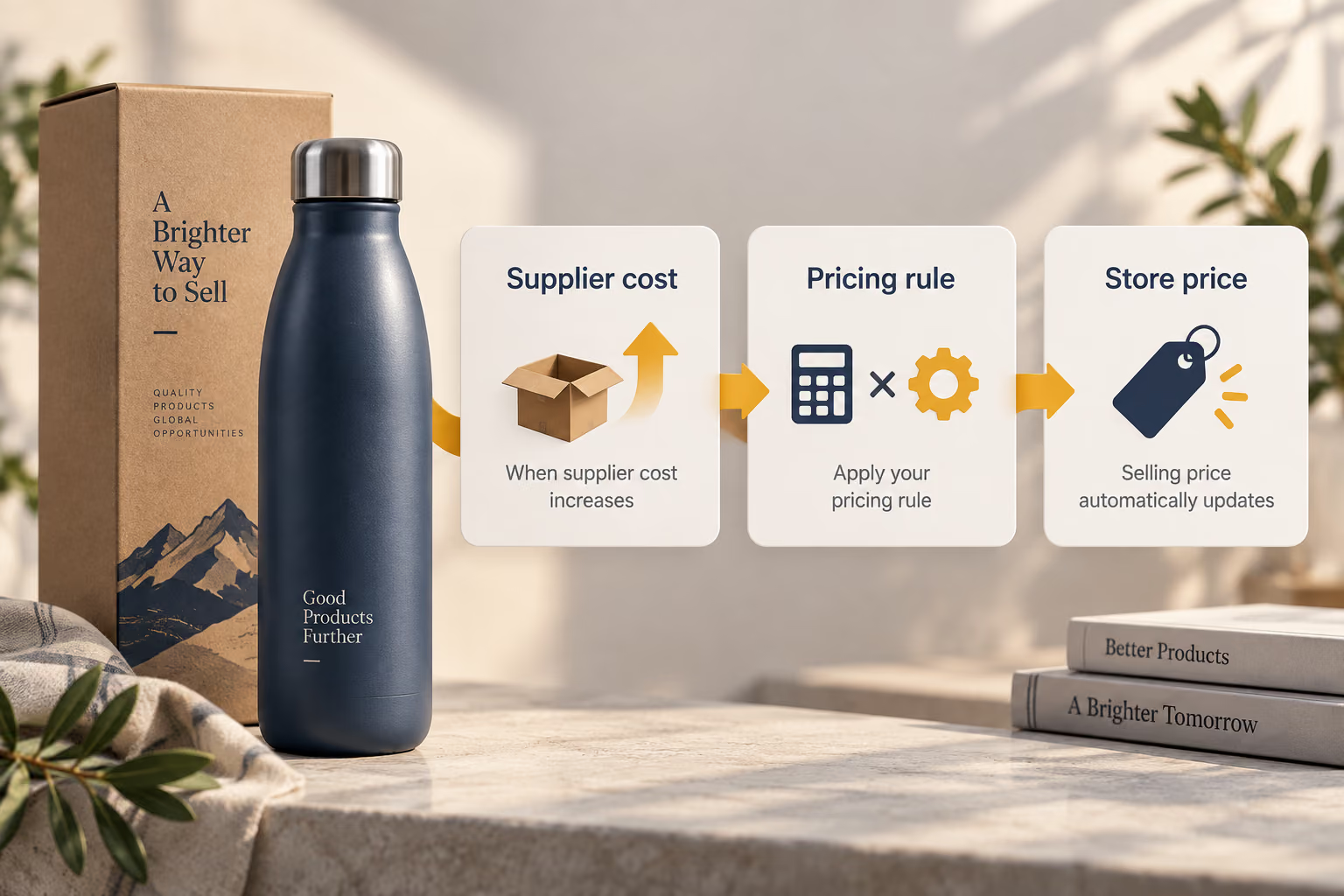
A profitable price can become risky when supplier costs or shipping inputs move. DSers lets you define pricing rules, preview the result, and recalculate store prices after eligible primary-supplier cost changes—keeping product-level pricing consistent without editing every listing by hand.
Dropshipping profit margin shows how much of your sales revenue remains after costs, expressed as a percentage. Start by comparing a product’s selling price with its purchase cost and shipping. Then account for fees and other expenses to understand what you actually keep.
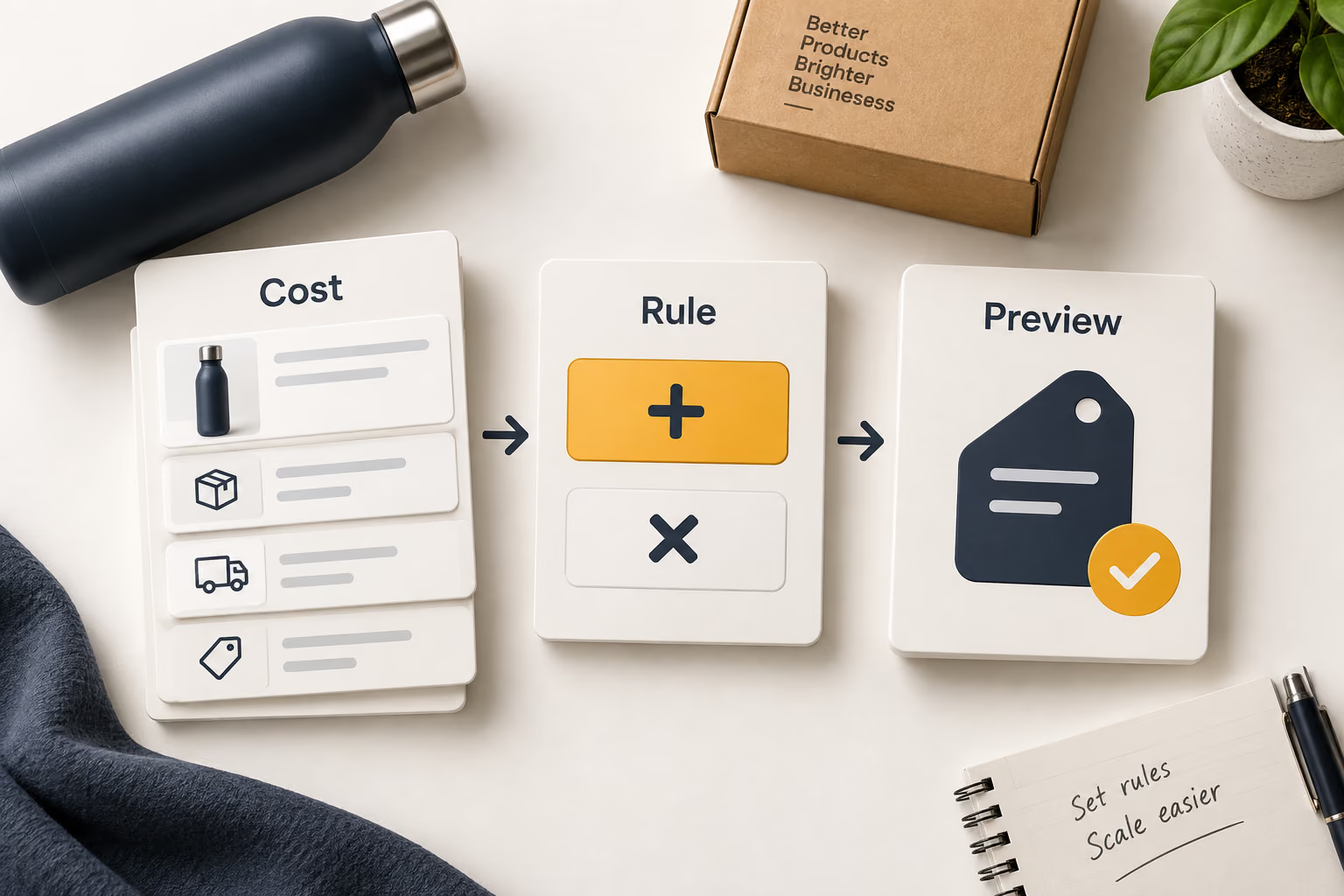
DSers helps you turn product costs and your pricing settings into selling prices. You choose the calculation, preview the result, and use the rule to price products consistently.
Manual vs. rule-based
Update Prices Without Recalculating Each Product
Compare checking and editing prices yourself with using DSers pricing rules and Automatic Price Update.
Manual price updates
Calculate and Edit Prices Product by Product
Check for cost changesCheck each product’s supplier cost manually.
Calculate the priceManually calculate and edit the price of each product.
Update the storeEnter the revised selling price on each listing.
Manage exceptionsKeep track of products that need a special price.
With DSers pricing automation
Apply Your Saved Rule to Price Updates
Check for cost changesDetect eligible cost changes from the product’s primary supplier after activation.
Calculate the priceRecalculate the selling price using your saved rule and settings.
Update the storeSend updates to the store price fields you selected.
Manage exceptionsDisable automatic updates for products that need manual pricing.
DSers handles the calculation and selected updates. You choose the rule and review products that need manual pricing.
Choose how prices are calculated
Set Prices Based on Your Costs and Profit Targets
Add an Amount or Multiply the Cost
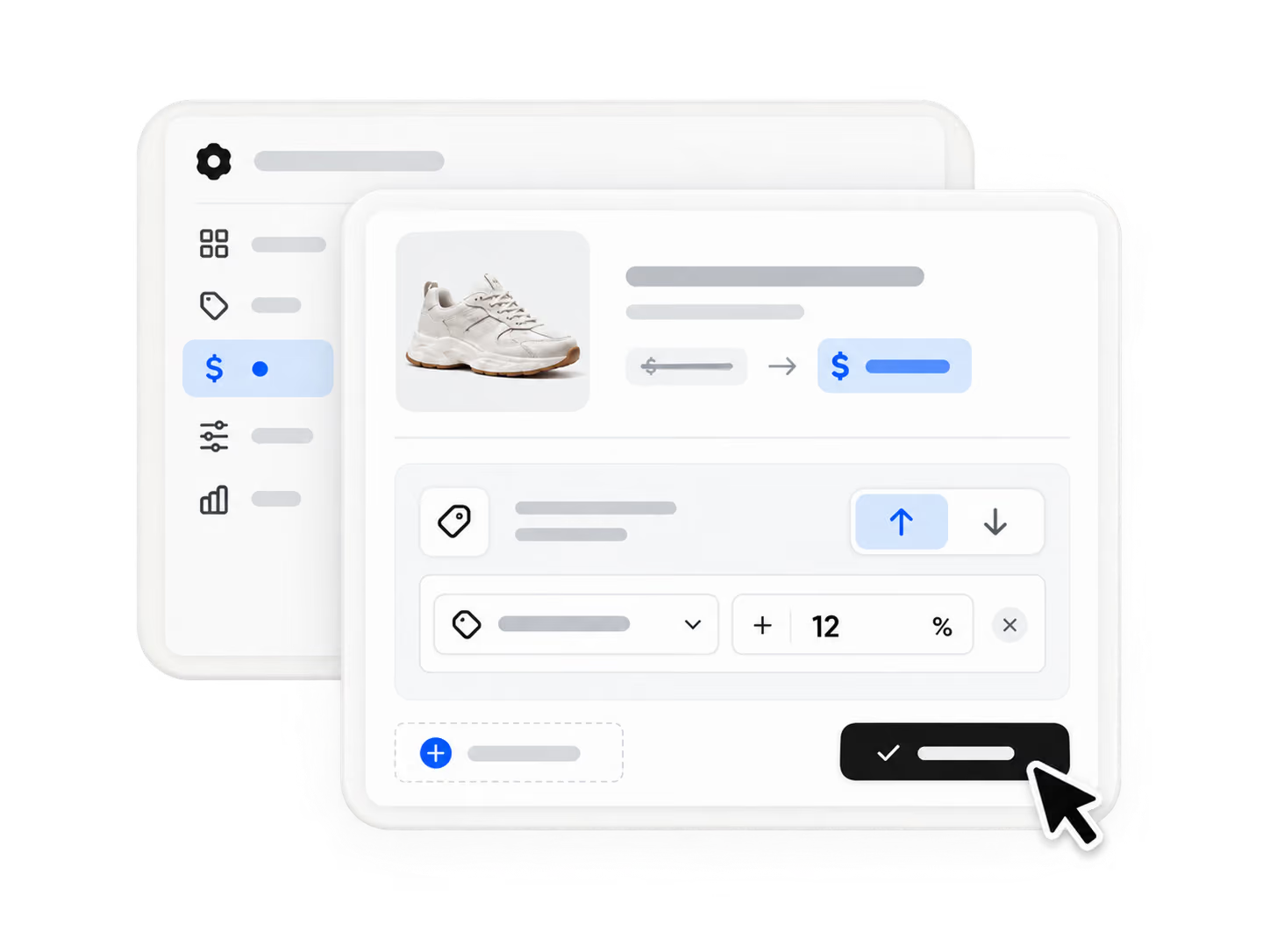
With Basic Pricing Rule, add a fixed amount to the cost or multiply it by a chosen factor. Use Product Cost, or Total Cost to include shipping. Shipping settings and supplier support must be valid; otherwise shipping may count as zero.
Advanced Pricing lets you apply different calculations to different cost ranges. Set a profit percentage, fixed profit, or minimum profit to suit your products. This feature requires an eligible paid plan.
Saving a new rule does not automatically reprice products already in your store. Use the separate manual price-update feature to apply it to existing products, subject to its requirements and plan limits.
Keep Cost Changes from Quietly Shrinking Your Margin
A selling price that worked yesterday may leave less room for profit today. DSers connects eligible supplier-cost changes to your pricing rule, so your store prices can respond without rebuilding each calculation by hand.
Respond to rising costs
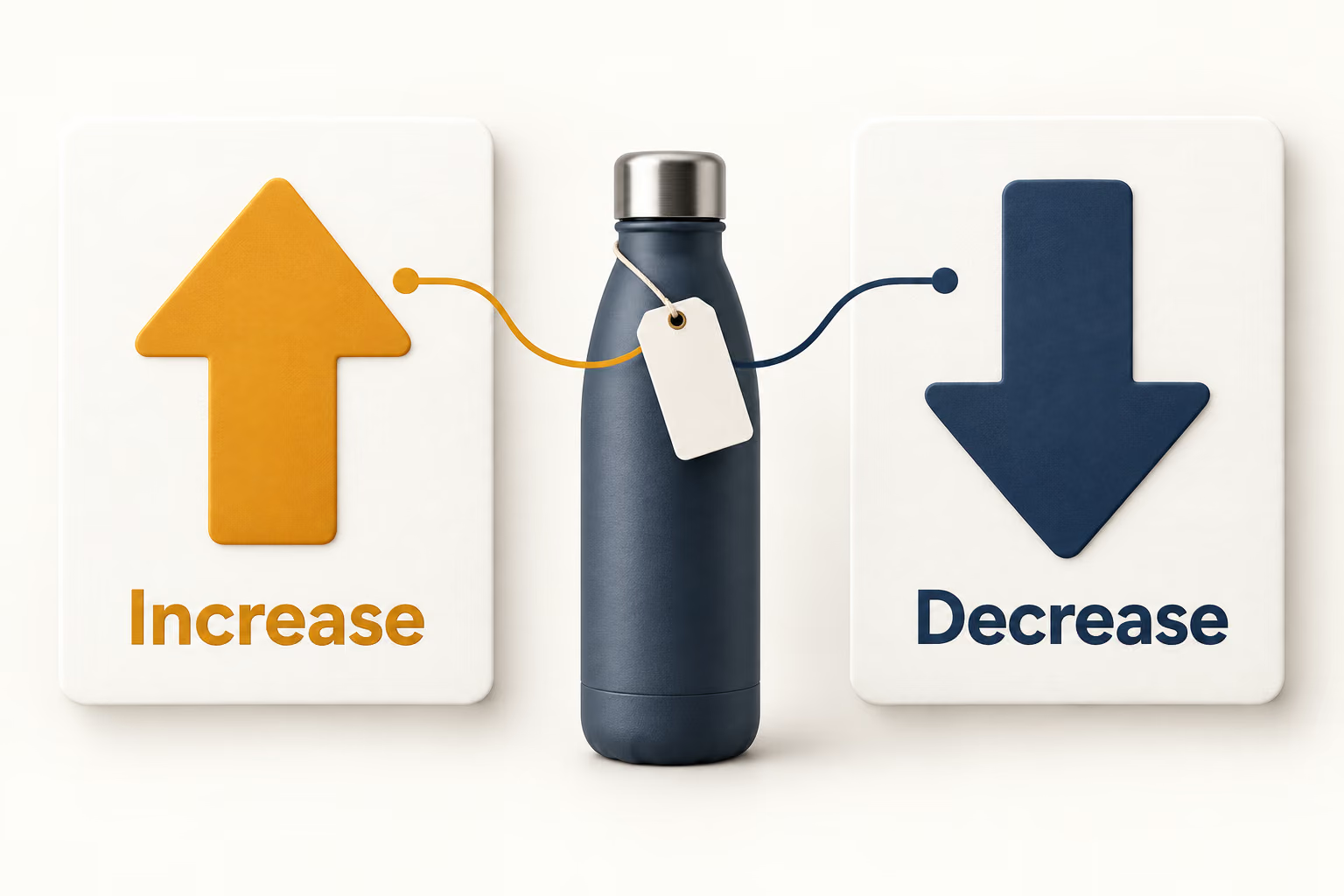
Recalculate selling prices when eligible cost increases meet your conditions, rather than leaving the original price unchanged.
Avoid repricing for every small fluctuation
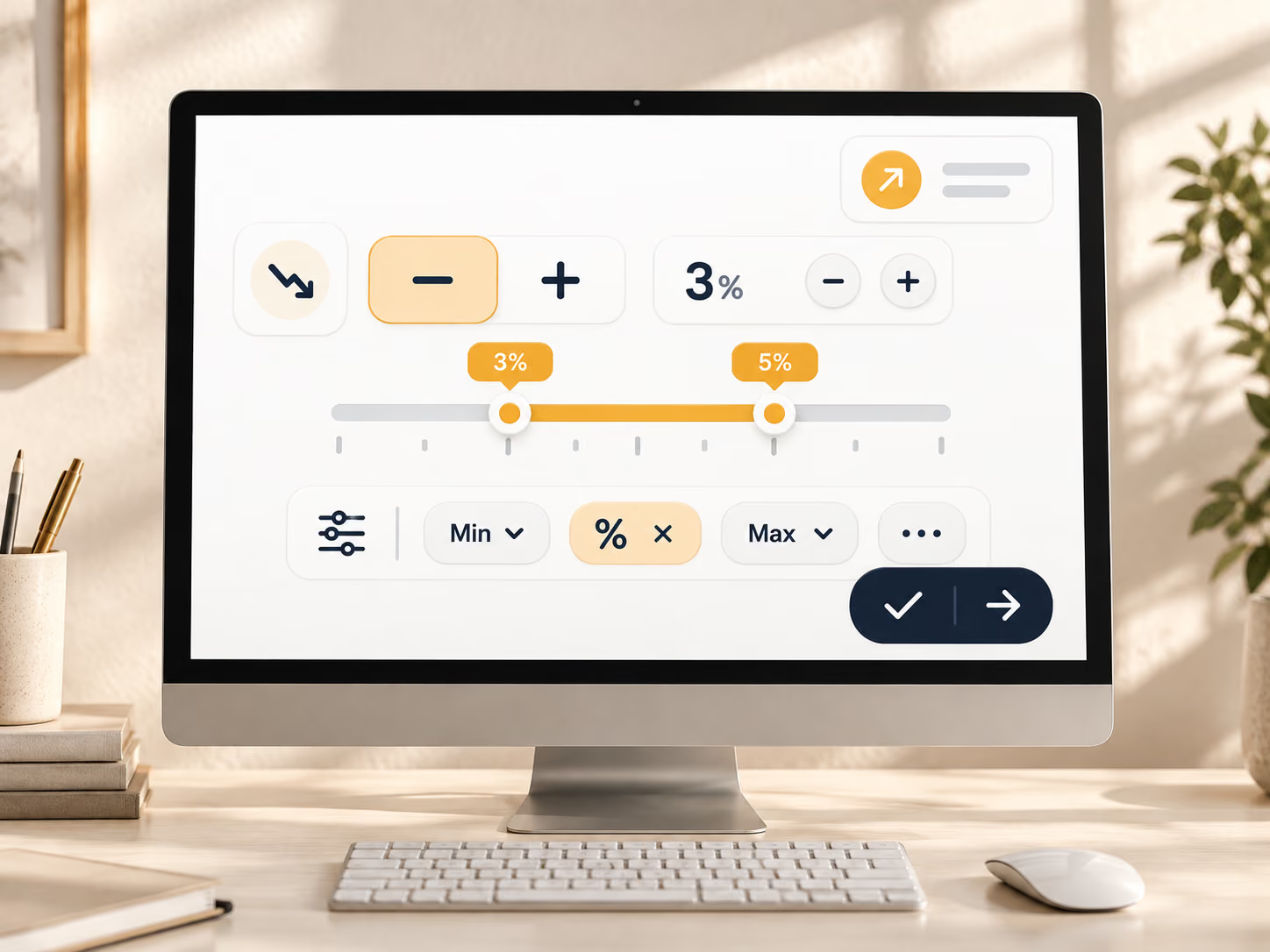
A percentage threshold lets you filter minor cost movements instead of treating every change as a reason to reprice.
Keep price changes tied to your strategy
Reuse your saved pricing formula so updates follow your chosen cost logic—not an improvised adjustment.
Find the right use case
When to Use Automatic Price Updates
01
Supplier Costs Rise but Your Selling Prices Stay the Same
Use automatic updates to recalculate prices when future supplier-cost changes meet your conditions.
02
You Have Too Many Products to Reprice One by One
Apply your saved rule to eligible products instead of calculating and entering every revised price yourself.
03
Low-Cost and Higher-Cost Products Need Different Rules
Combine Advanced Pricing cost ranges with automatic updates to use the appropriate calculation for each range.
04
Some Products Need to Keep a Promotional or Fixed Price
Leave those products on manual pricing by disabling their automatic updates, while automating other eligible products.
Set the rule, then the trigger
Set Up Automatic Price Updates in 5 Steps
Build the pricing logic first, then decide which future supplier-cost changes should run it.
Step 1
Create and activate a pricing rule
In Settings → Pricing Settings, select the store and currency, choose Basic or Advanced pricing, configure the rule, preview the result, and save. Advanced Pricing Rule and Automatic Price Update require an eligible paid plan.
Step 2
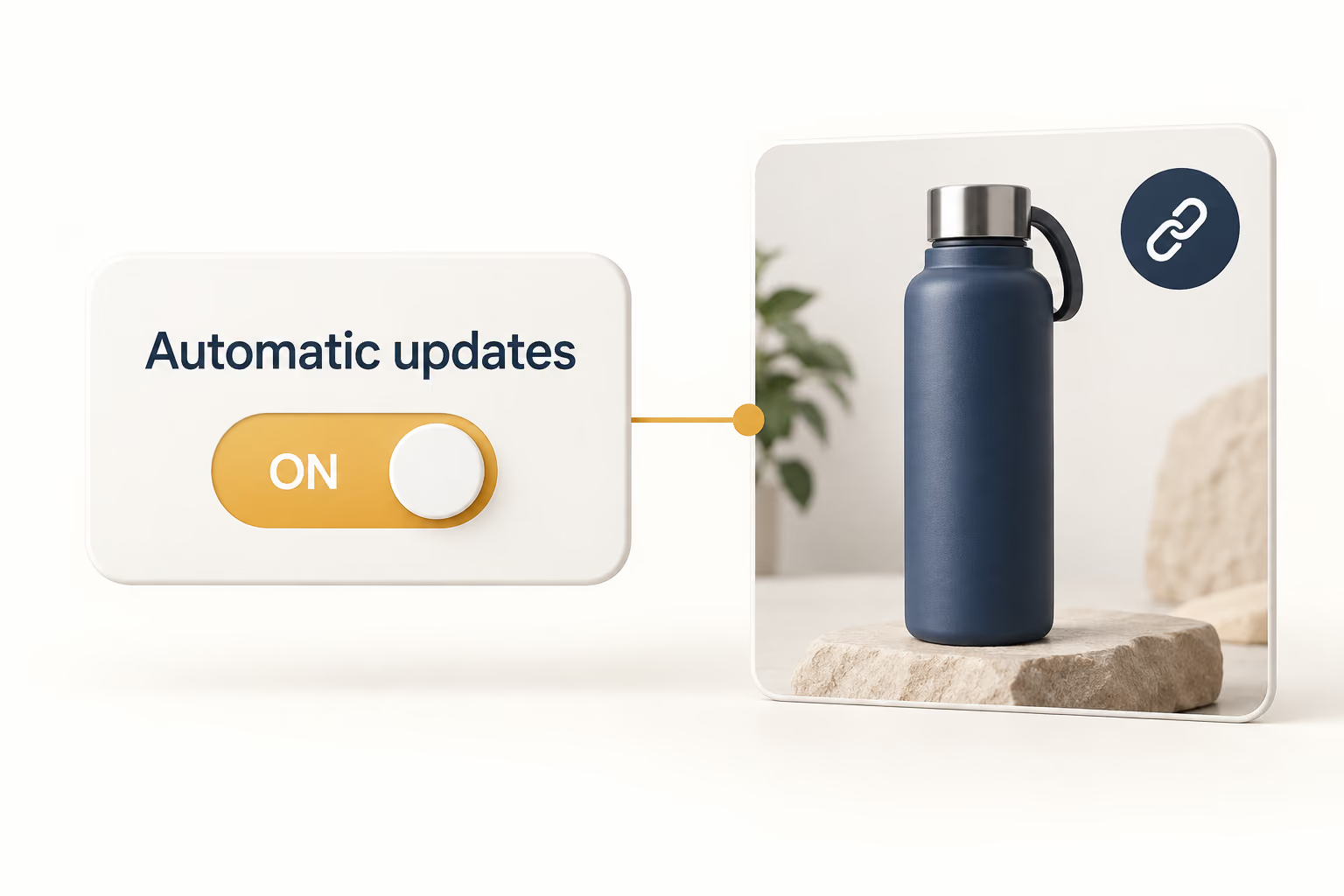
Open Automatic Price Update
Go to Settings → Product Settings and find the Automatic Price Update section. Confirm that the products you want to update have valid mappings.
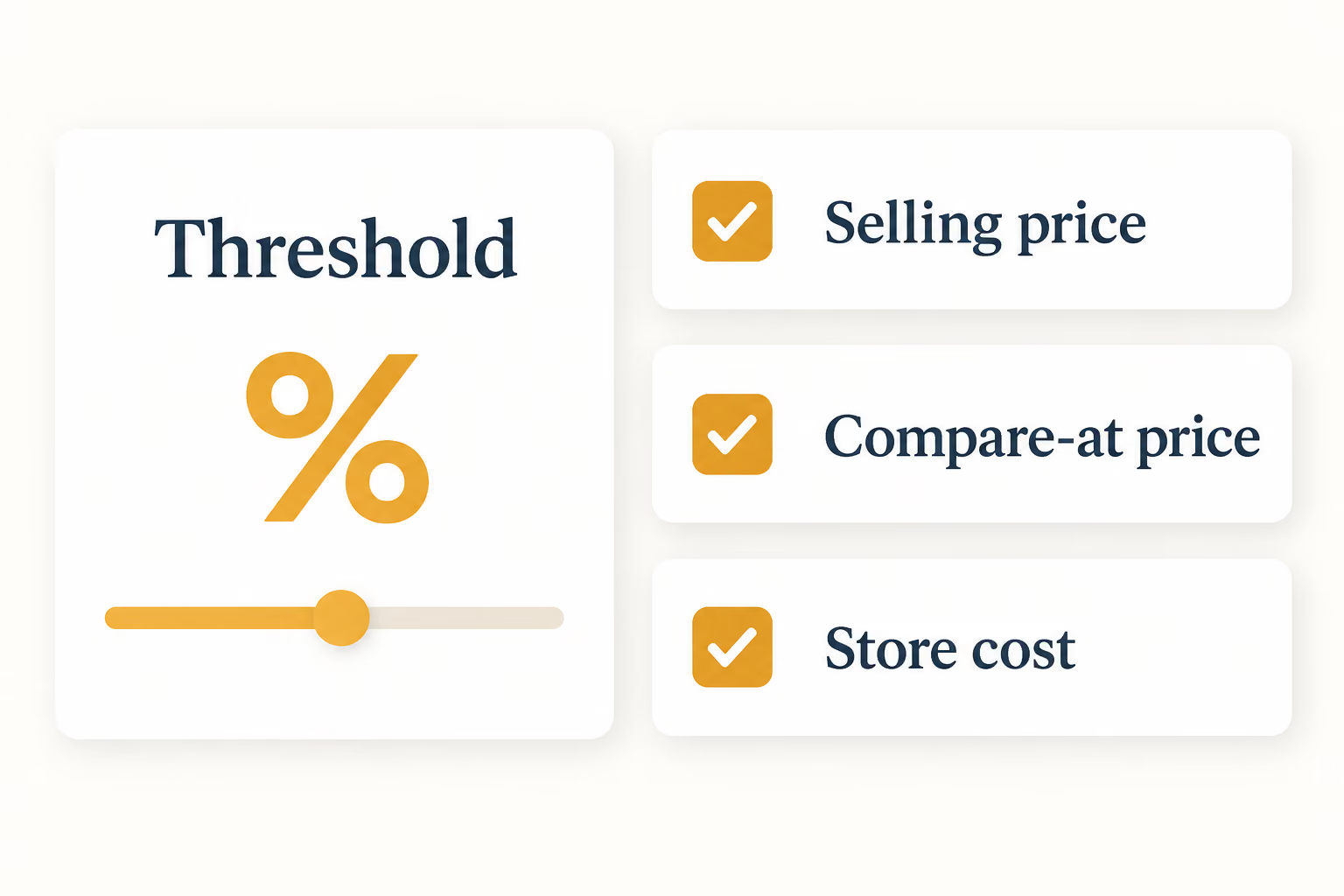
Choose the percentage threshold that should trigger recalculation, then select whether DSers updates selling price, compare-at price, store cost, or the supported combination you need.
Step 5
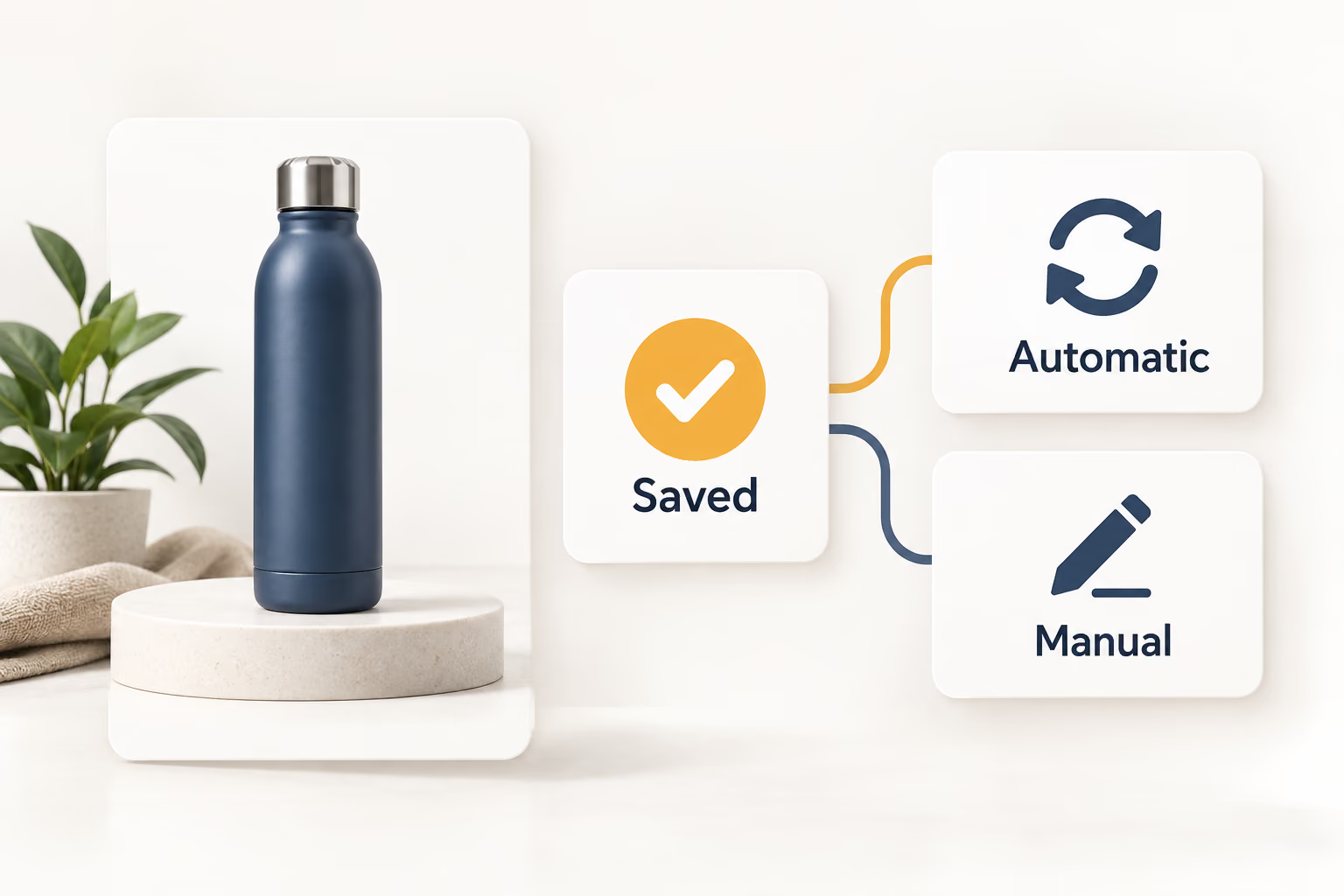
Save, review, and manage exceptions
The setting applies to future eligible changes. Periodically spot-check results, keep shipping settings current, and disable automatic updates for any product that needs manual pricing.
Keep Pricing Logic Connected to Cost Changes
Set a repeatable pricing rule, choose which supplier-cost movements should trigger it, and keep exceptions under your control as your catalog grows.
It is the percentage of a selling price left after included costs are deducted. Product-level margin may cover product and shipping, while net profit also reflects advertising, refunds, apps, taxes, and operating costs.
Can DSers calculate my complete net profit margin?
No. DSers pricing rules calculate store prices from supported inputs; they do not replace business accounting. Track advertising, refunds, software, and other expenses separately.
What is the difference between Basic and Advanced Pricing Rules?
Basic Pricing Rule adds to or multiplies Product Cost or Total Cost. Paid-plan Advanced Pricing adds profit percentage, fixed and minimum profit, breakeven percentage, shipping, cost ranges, and supported tax settings.
Does Automatic Price Update change every mapped supplier price?
No. It follows the primary supplier, not backups. It covers eligible changes detected after activation and requires a valid mapping and active pricing rule.
Will a new pricing rule update products already in my store?
Not by default. New templates cover newly imported products. Existing products require the separate manual price-update workflow and its prerequisites and plan limits.
Can I keep a promotion or loss-leader price from being overwritten?
Yes. In My Products, open Update Settings and disable Automatic Price Update. Otherwise, a later primary-supplier cost change can replace the manual price.