Create focused product pages
Give a distinct color, style, or variant group its own product instead of placing every choice on one page.
DSers Product Management
Turn one multi-variant supplier product into separate products before you publish. Choose how variants are grouped, control which images follow each result, and review every new product independently in your DSers Import List.
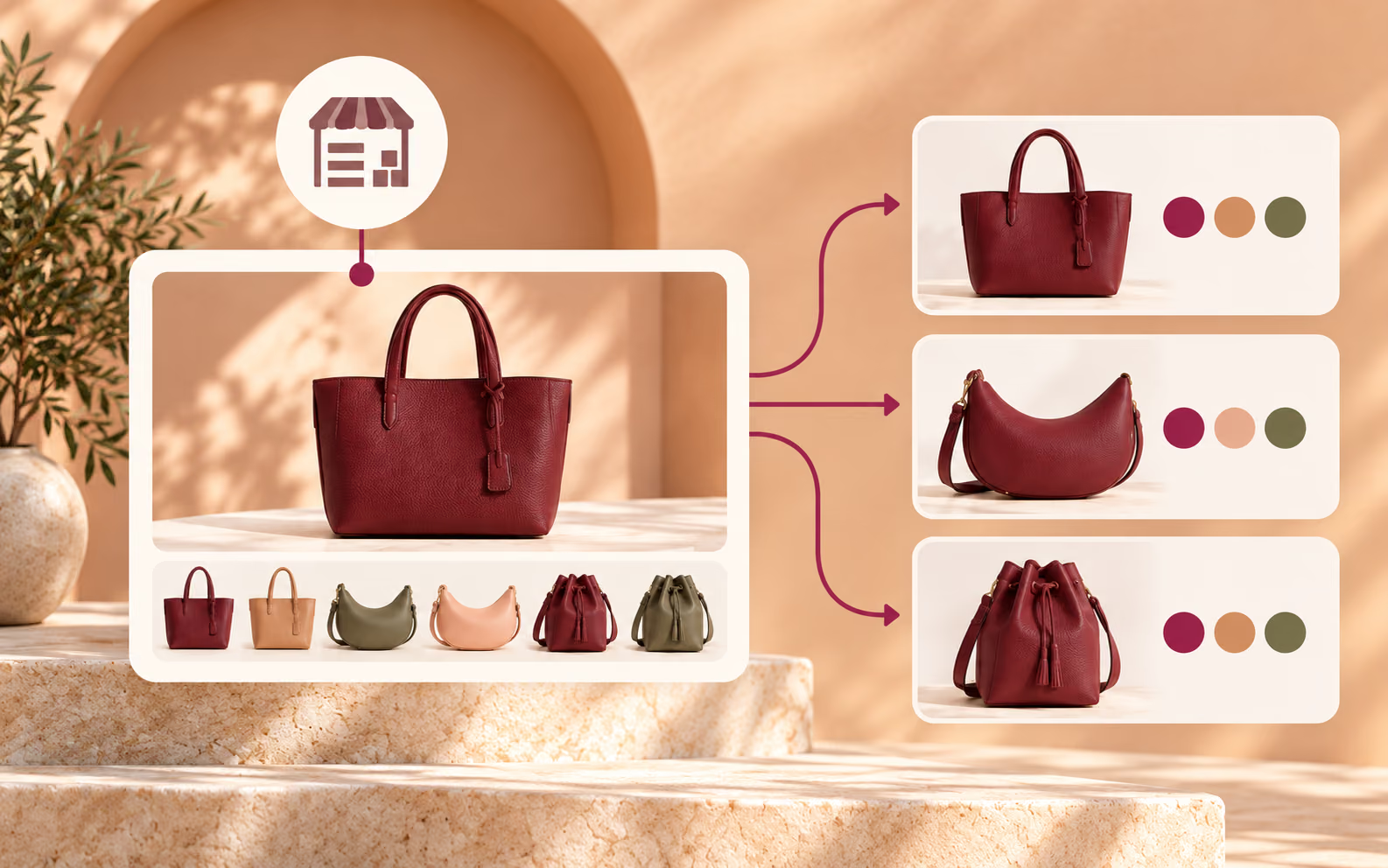
What Product Division does
Supplier products often combine many colors, sizes, or styles in one listing. That structure may not match the way you want to present products in your store.
Product Division reorganizes selected variants before you push. One imported parent product can become several independent products containing the option values or exact combinations you choose.
Why divide a product
Give a distinct color, style, or variant group its own product instead of placing every choice on one page.
Keep the variant values or exact combinations that fit your catalog plan.
Review the new products separately and give each one the information and merchandising treatment it needs.
Three grouping methods
Each method starts with one multi-variant product but groups the new products differently.
Select at least one value from each option and create one product containing that variant set. A lamp offered in Red, Cream, and Green and sizes S, M, and L could become one product containing Red and Cream in sizes M and L.
Choose one option and create a product for every selected value under it. Split the lamp by Color, and Red, Cream, and Green become separate products with their available sizes.
Turn exact combinations into separate products. Red / S, Cream / M, and Green / L can each become an individual result.
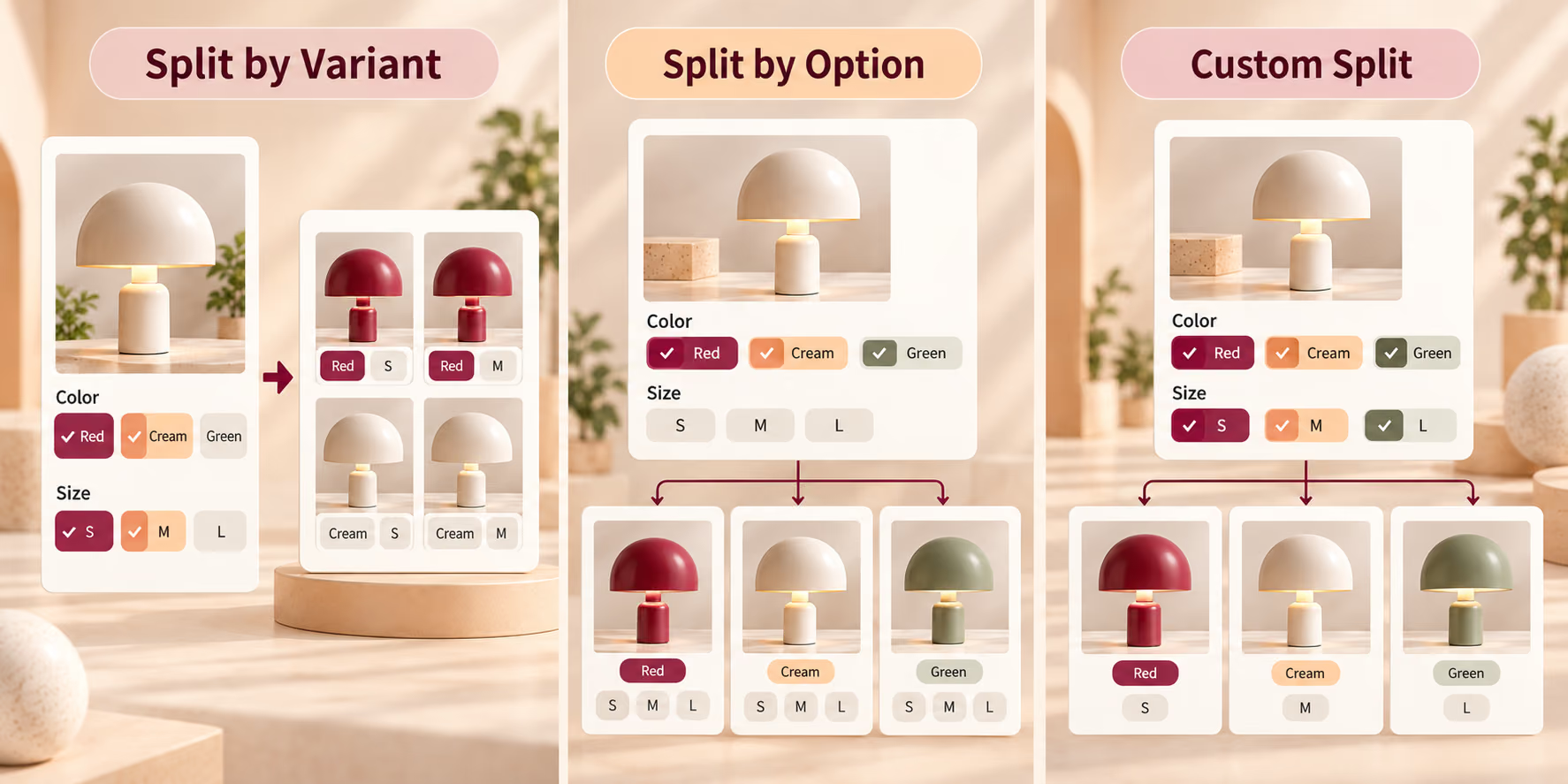
Image settings
Original variant images remain available.
Only images linked to included variants remain.
“Keep unselected Variant images” is enabled by default, keeping original variant images as additional images.
Turn the setting off when each result should retain only images connected to its selected variants.
After confirmation
New products appear at the top of Import List. Check every result instead of assuming all inherited information still fits.
Each result contains only the variants assigned to it.
The original imported item remains visible as the Parent Product.
Values update to reflect the variants included in each result.
Existing product tags carry over and should be reviewed before pushing.
A separate pre-push step
Product Division determines how variants are separated. It does not determine the store information you assign afterward.
Once new products are in Import List, use the normal pre-push workflow to refine titles, descriptions, variants, images, and prices. For Shopify products, you can also preset product information such as product category or product type and store tags.
These fields do not control, trigger, or change Product Division. They are separate editing choices for preparing each result.
After Product Division
Catalog decision guide
Split according to how customers should discover and understand the products, not simply the number of supplier variants.
Split Product workflow
Follow one continuous path from the imported parent product to the new products you review before publishing.
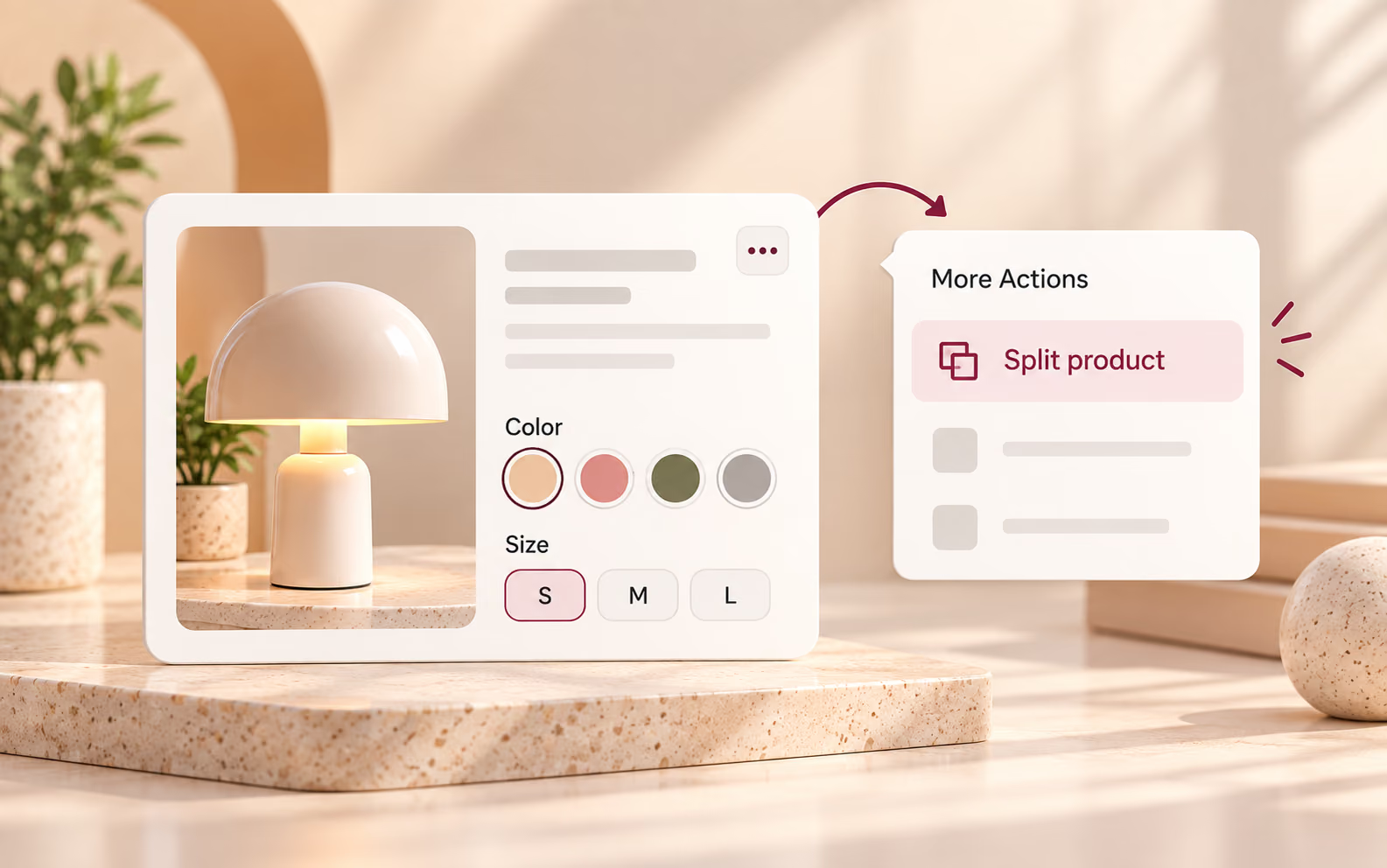
In Import List, open More Actions for an eligible multi-variant product and choose Split product.
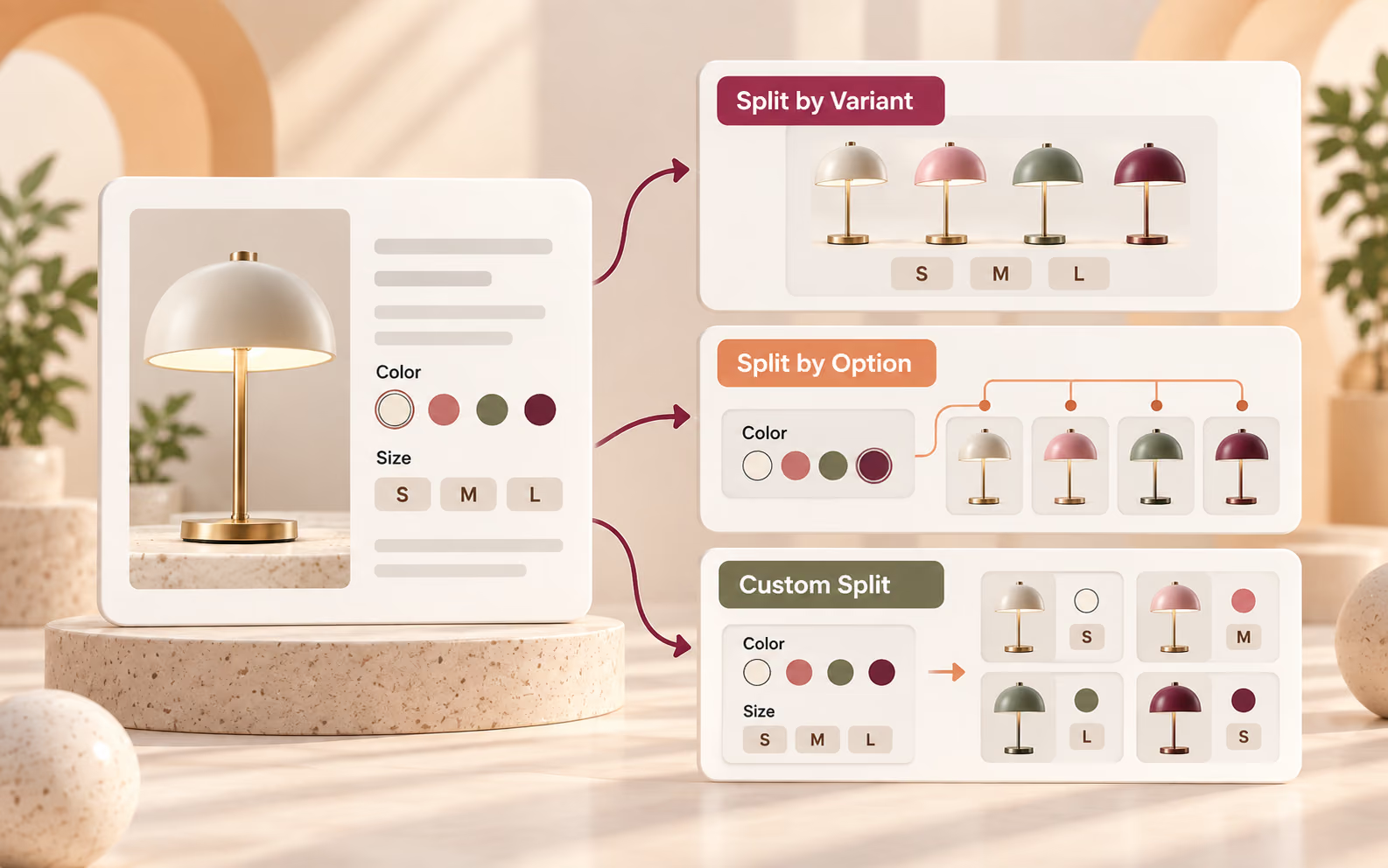
Select Split by Variant, Split by Option, or Custom Split according to the product structure you want to create.
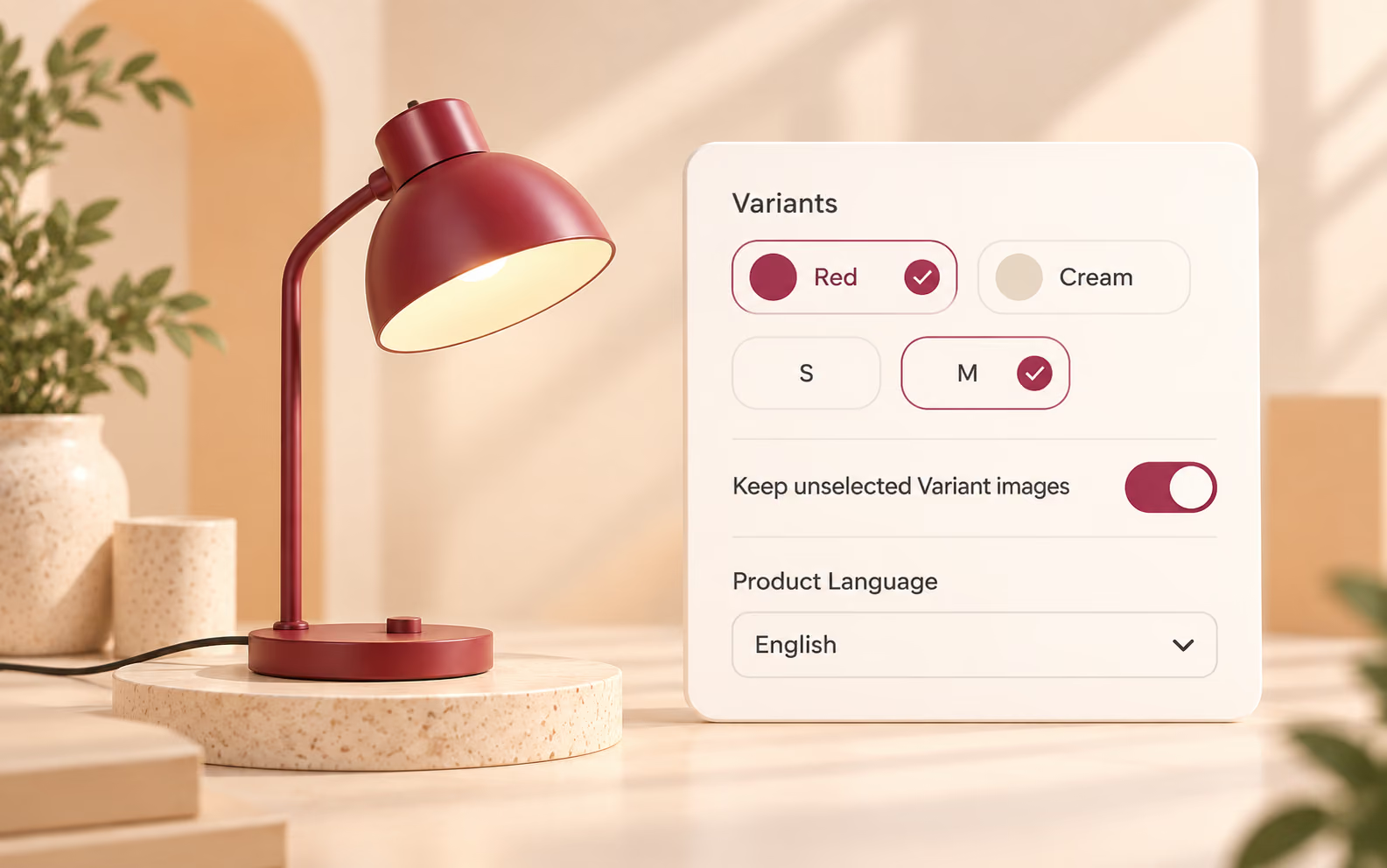
Make the required variant selections, choose whether to keep unselected variant images, and confirm the Product Language.
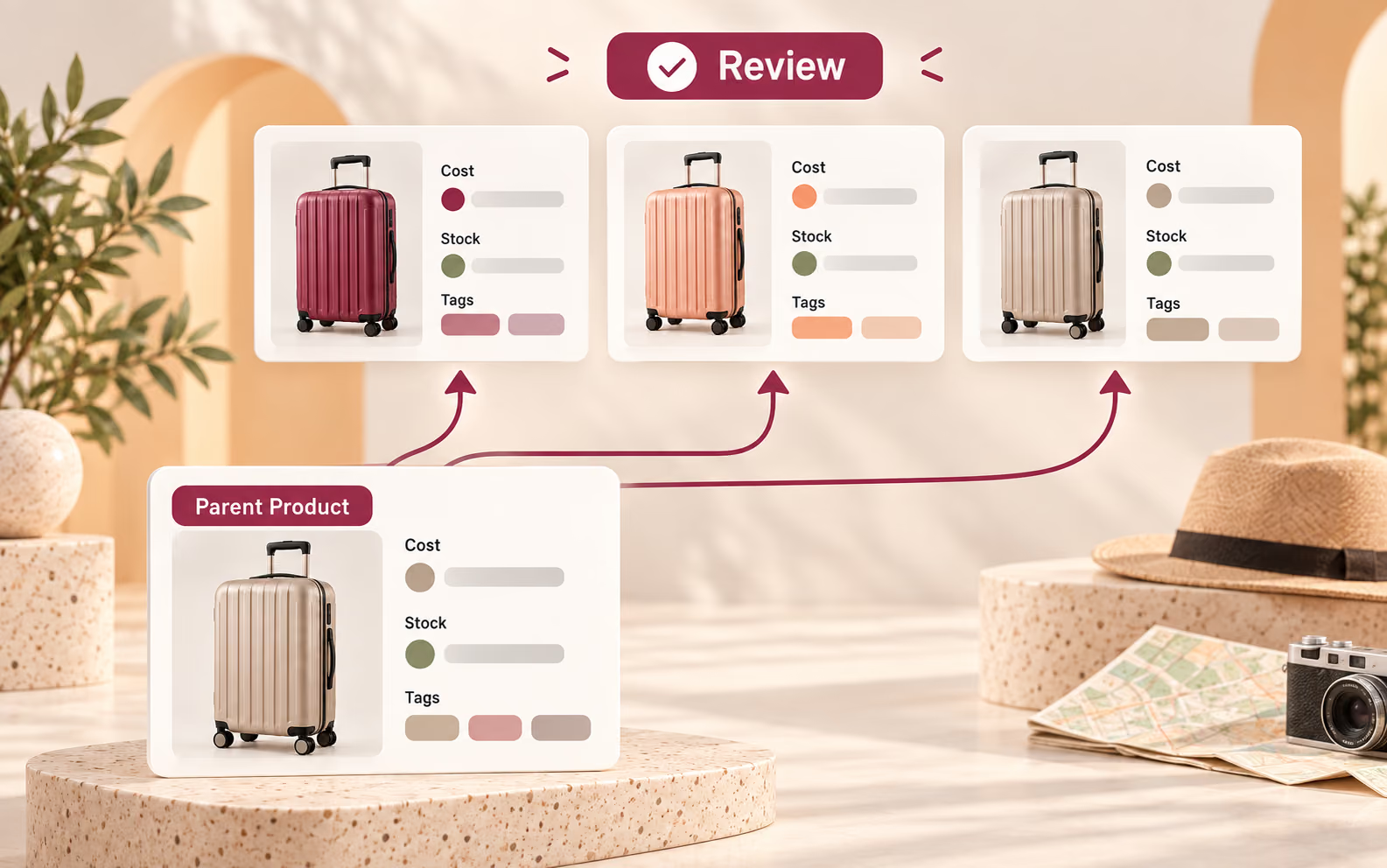
Select CONFIRM, then review the new products at the top of Import List. Check their variants, images, cost, stock, and inherited information.
Divide one imported multi-variant item into focused, independent products—then review and prepare each result before it reaches your store.
Product Division splits one eligible multi-variant product in Import List into new independent products. You choose which variant values or combinations belong in each result before pushing them.
Split by Variant creates one product from selected values across the available options. Split by Option creates separate products based on the values of one chosen option. Custom Split creates products from exact variant combinations.
The original imported item remains in Import List as the Parent Product. The newly created products appear at the top of the list for review.
No. Store categories, product types, and tags are separate pre-push product information. They do not trigger Product Division or change which variants are included in a split result.
Product Division supports eligible products imported from AliExpress, Alibaba.com, and 1688.
Cost and stock reflect the variants included in each new product. Image behavior depends on the image setting selected during setup. Review all inherited images and information before pushing the results.