DSers for WooCommerce
DSers Dropshipping WordPress Plugin
Connect your WooCommerce store to DSers, check the connection from WordPress, and send shipping-confirmation emails when fulfilled orders receive tracking information.
Download the Plugin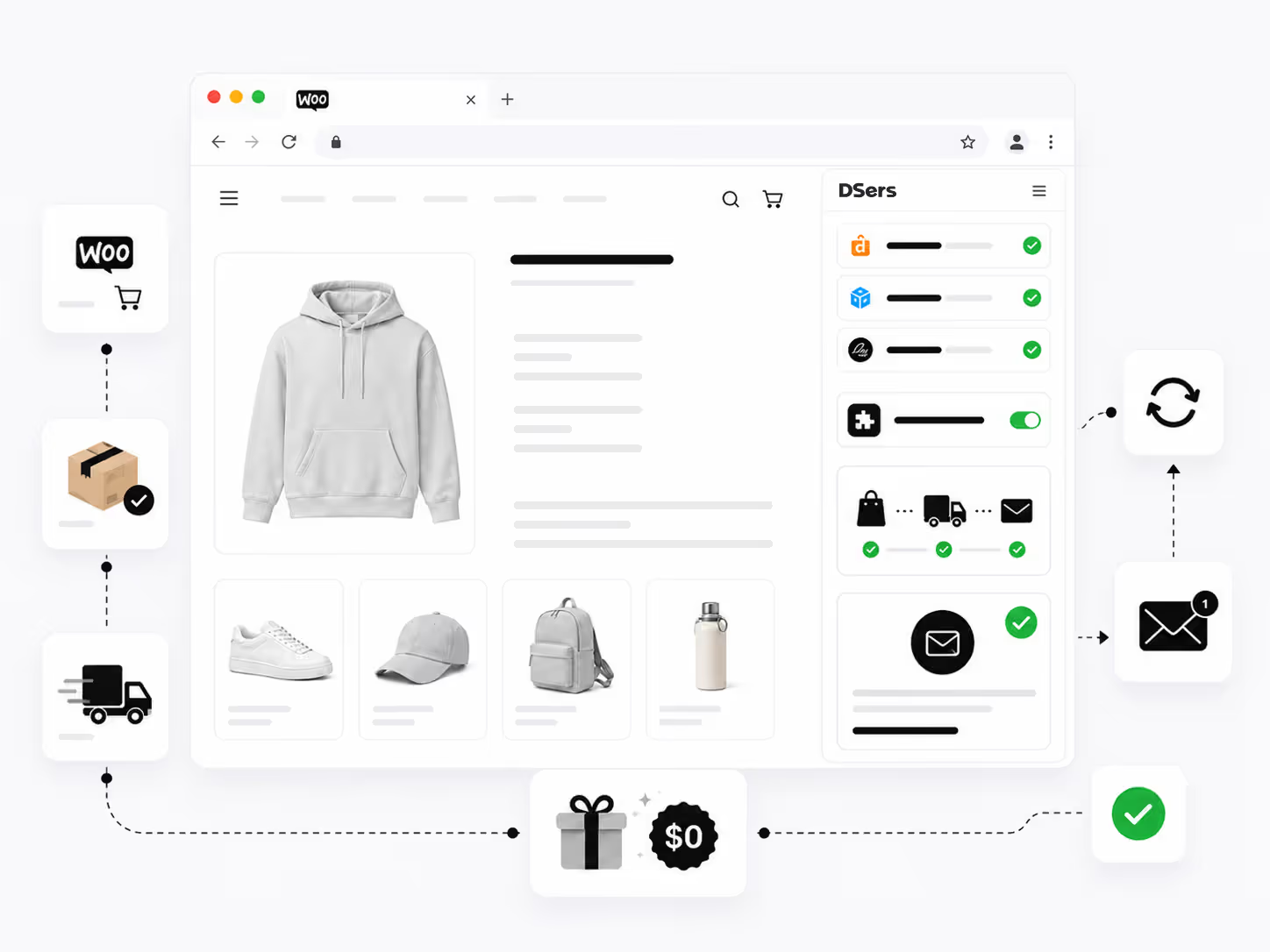
One plugin, one clear role
Connect WordPress to DSers Without Moving the Whole Workflow
The DSers plugin is a connection and notification bridge for WooCommerce stores. After activation, a DSers menu appears in WordPress so you can check the connection, connect the store, or open DSers.
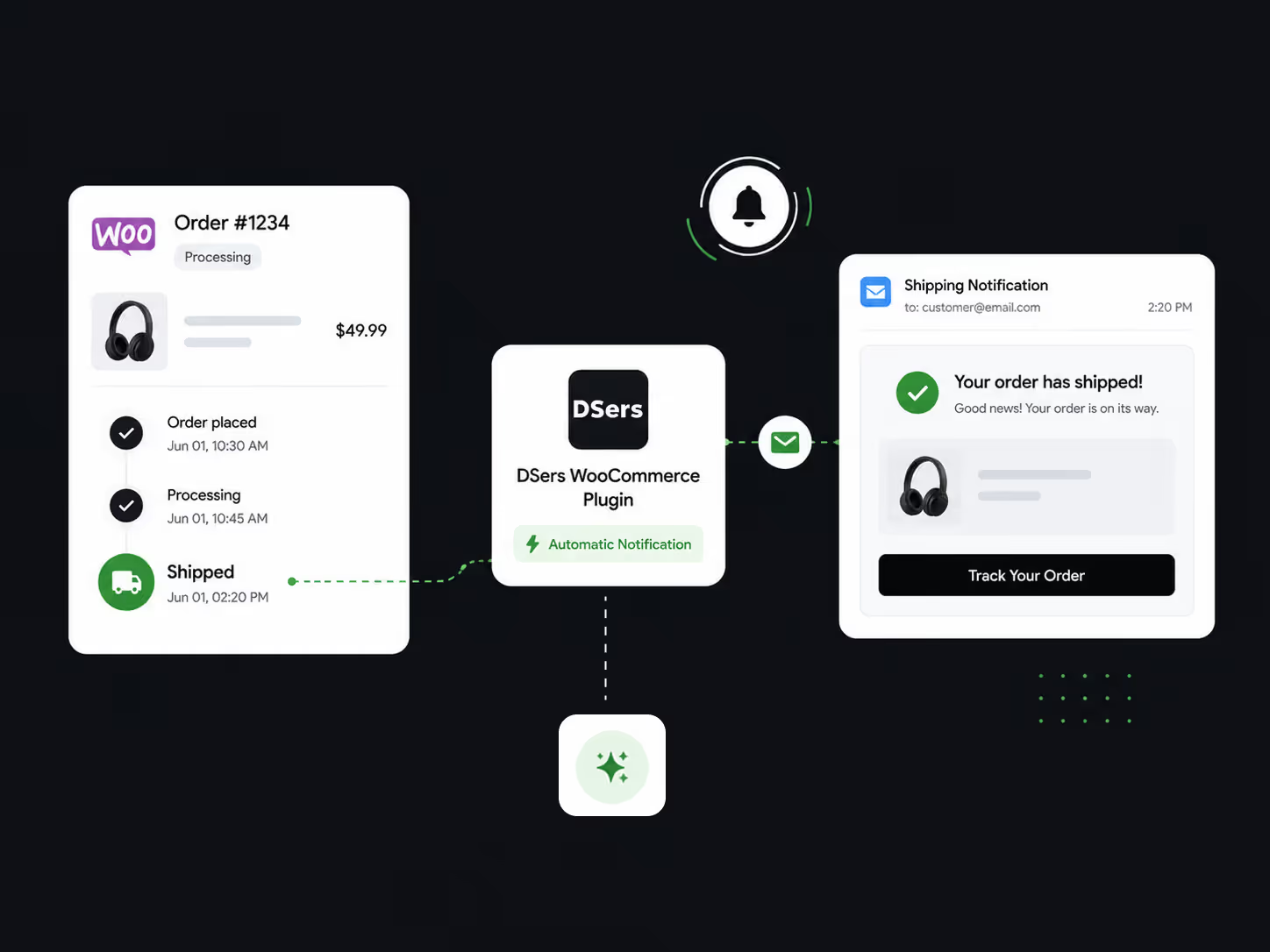
When notifications are enabled, tracking is available and an order moves to Fulfilled in DSers, the plugin can trigger WordPress to send the customer a shipping-confirmation email.


Check the connection
See whether the WooCommerce store is connected from WordPress.
Move between systems
Start the connection flow or open DSers from the dashboard.
Send shipping updates
Trigger configured WordPress emails with tracking after fulfillment.
A lighter handoff
Reduce the Gap Between Tracking and Customer Updates
Without a connected workflow, you may need to check for tracking, return to WordPress and verify the customer update separately. With the plugin configured, a fulfilled order with tracking can trigger the WordPress email.
| Workflow point | Without the connection | With the plugin configured |
|---|---|---|
| Connection | Verify it outside WordPress | View its state from the DSers menu |
| Access | Open DSers separately | Use the DSers action in WordPress |
| Shipping email | Check the update separately | Let fulfillment and tracking trigger the email |
From tracking to inbox
How Shipping Updates Move from DSers to Your Customer
Four connected events turn available tracking information into the customer message configured for your WooCommerce store.
- 01
Tracking becomes available
DSers receives the tracking number for the order.
- 02
The order moves to Fulfilled
DSers checks the connected store’s notification settings.
- 03
The plugin triggers WordPress
The fulfillment event reaches the connected WordPress site.
- 04
WordPress sends the email
The customer receives the configured message, including tracking when enabled.
In DSers, you can configure the sender, template language, carrier, tracking URL and whether tracking appears in the email.
Set up the connection
Install the DSers Plugin in Four Stages
- 1
Prepare the store
Use WordPress with SSL, activate WooCommerce and set permalinks to Post name.
- 2
Download the plugin
Use Download Plugin in the WooCommerce fulfillment settings in DSers, or follow the official guide.
- 3
Upload and activate it
In WordPress, choose Plugins, Add New and Upload Plugin, then install the downloaded file.
- 4
Connect and configure
Complete the DSers authorization flow and enable the shipping-confirmation email settings.
After activation, DSers appears in the WordPress navigation. Check the connection before testing an order with tracking.
Ready to connect?
Connect WordPress to the DSers Workflow Behind Your Orders
Add the plugin, confirm the WooCommerce connection and configure the shipping message customers receive after fulfillment.
FAQ
Is the DSers WordPress plugin free to install?
Yes. DSers describes it as a free tool. Your DSers account and plan are separate.
What do I need before connecting WooCommerce to DSers?
You need WordPress, active WooCommerce, SSL, Post name permalinks and a DSers account.
Does the plugin manage the entire dropshipping workflow inside WordPress?
No. It provides the connection entry and supports shipping emails. Product, supplier, order and fulfillment work remains in DSers and WooCommerce.
When does the customer receive a shipping-confirmation email?
When notifications are enabled, tracking is available and the order reaches Fulfilled in DSers, DSers triggers the configured WordPress email.