DSers Import List

Product Listing Management Before You Publish to Shopify

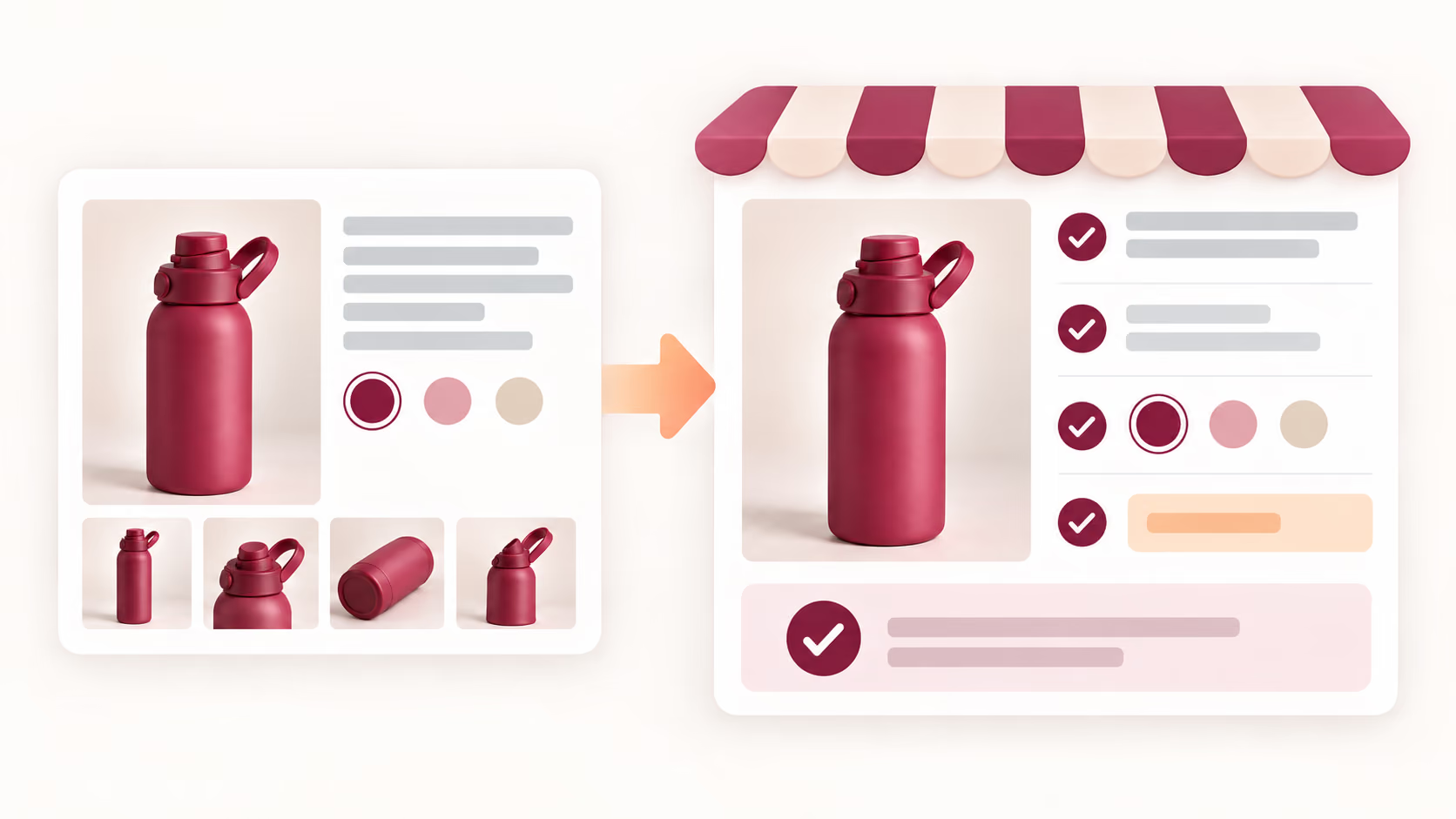
Turn imported supplier products into organized, store-ready listings with DSers Import List. Edit the information shoppers will see, keep product ideas under control, and publish finished listings to Shopify or another connected store when you decide they are ready.

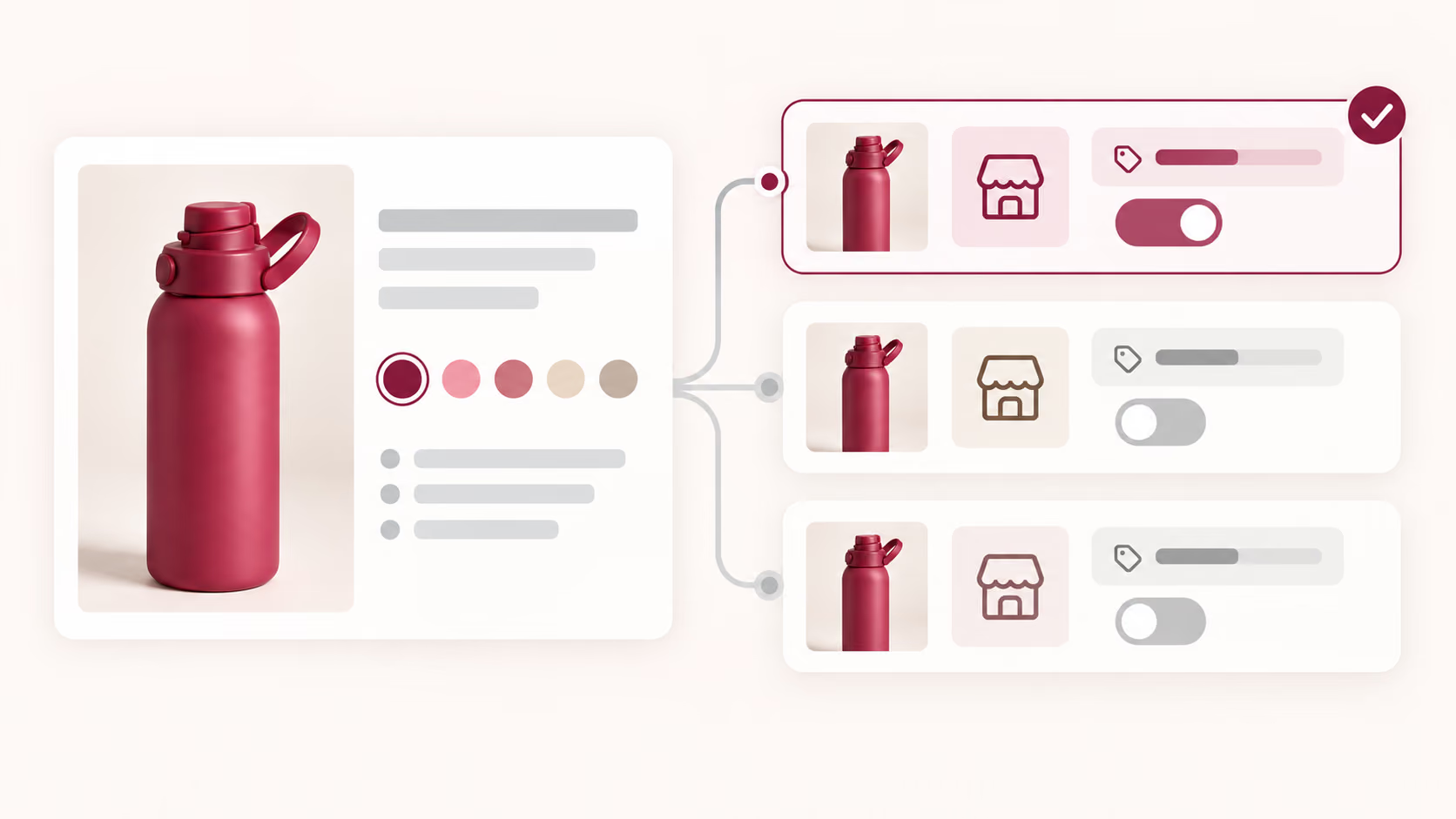
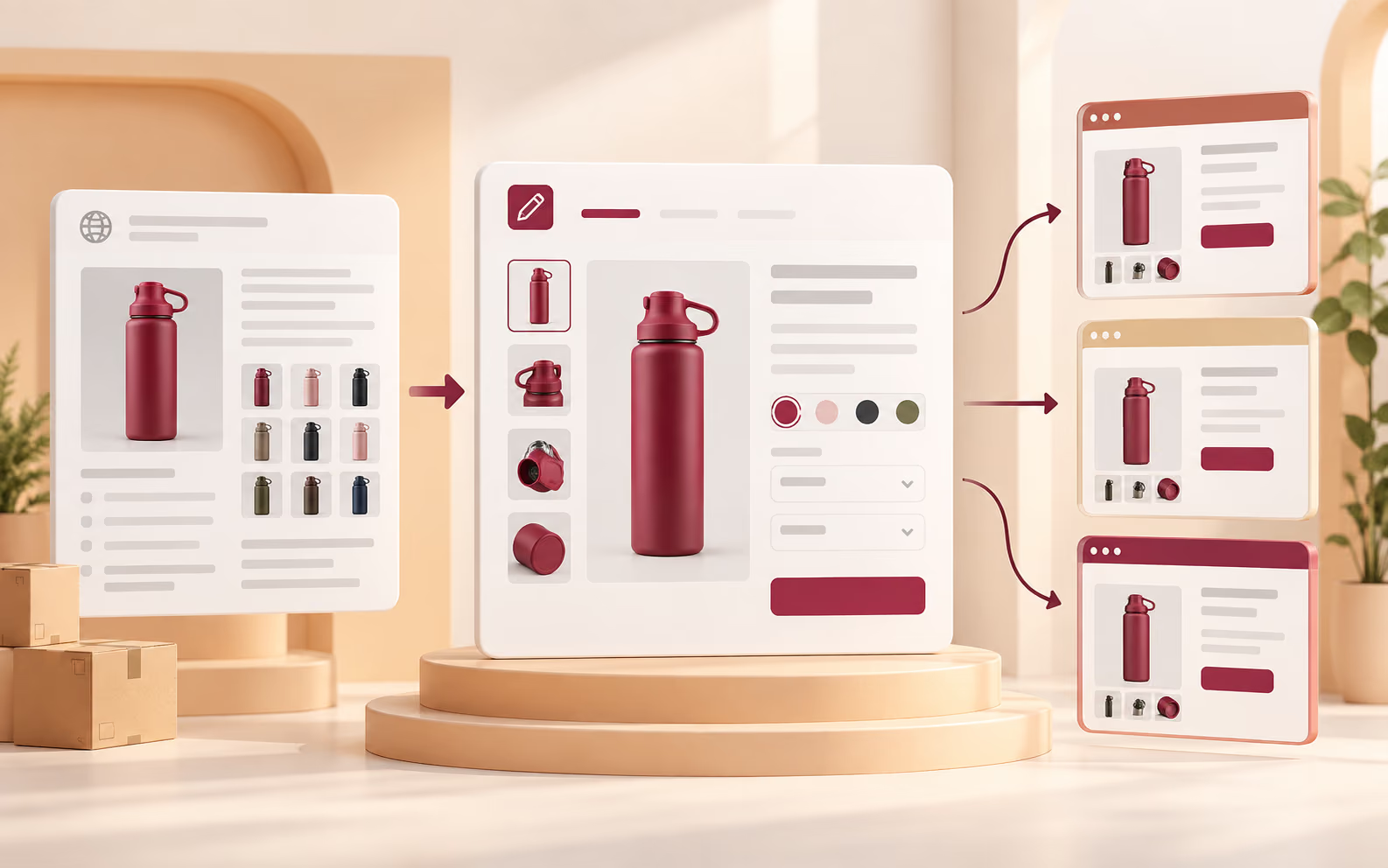
An imported bottle listing being prepared and directed to three connected online stores

What a listing contains

A Product Listing Workspace Between Sourcing and Your Store

A product listing is the sellable product record customers encounter on a commerce channel. It brings together the title, description, images, price, variants, and other details needed to understand and buy the item. DSers Import List is the preparation workspace for that record: imported products stay there while you review and edit them, before they move to a connected store.

This page focuses on individual product listings and their data—not the category or search grid sometimes called a product listing page.

AaTitle and descriptionCustomer-facing product information
▧Images and variantsWhat shoppers see and select
$Price and destinationWhat you review before pushing

Raw data vs. prepared listing

Prepare Supplier Products Before Customers See Them

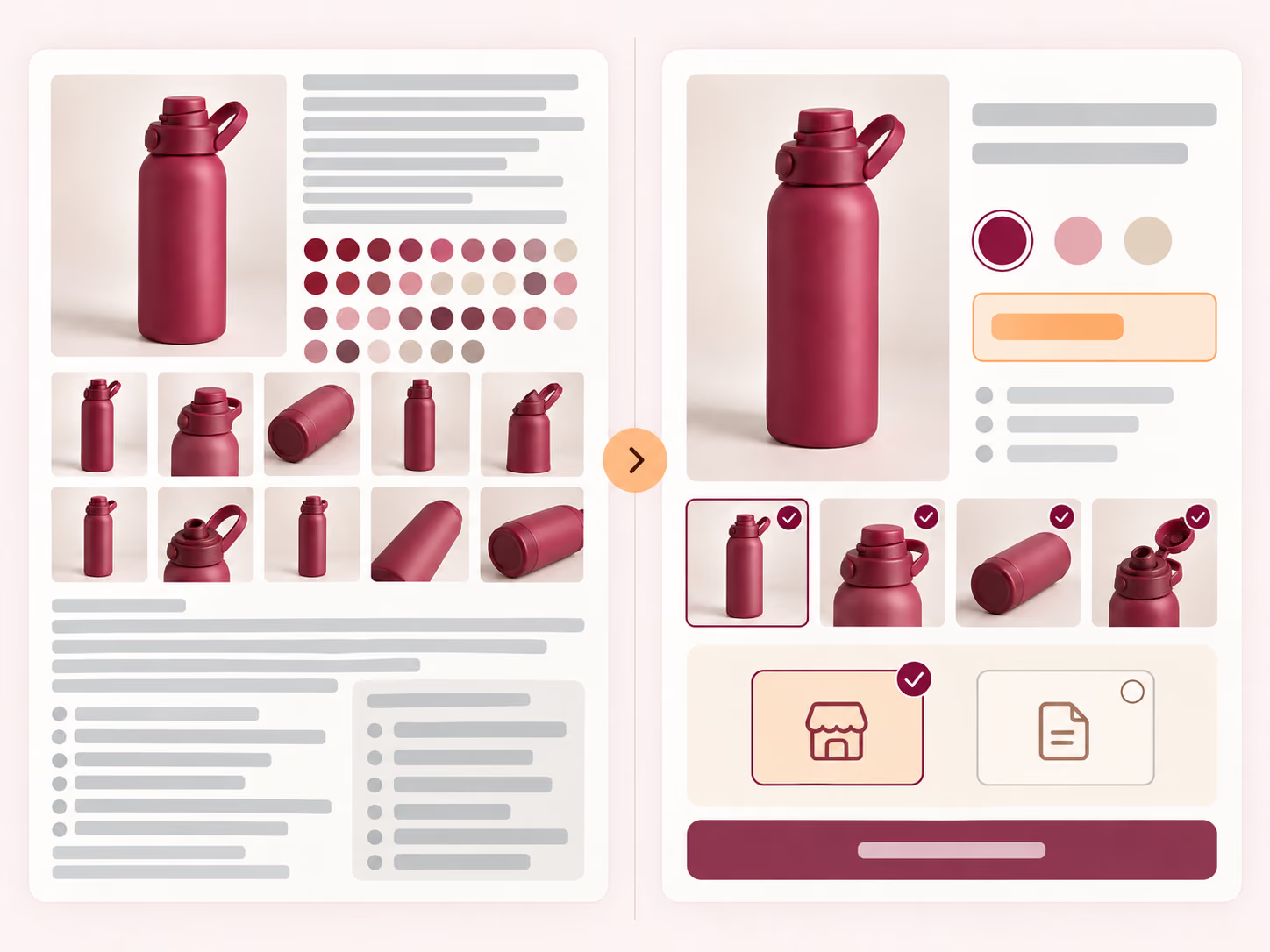
Publishing supplier data immediately can leave you fixing long titles, duplicate-looking variants, cluttered descriptions, unsuitable images, or incorrect prices after the product has already reached your store.

Preparing the listing in DSers first gives you a controlled checkpoint. Review the content, remove options you do not plan to sell, select the images that should be included, set pricing, and choose whether the finished product should be published or remain a draft in the destination store. You keep the final decision while reducing avoidable cleanup later.

The same bottle shown in a cluttered supplier listing and a cleaner store-ready listing

Listing controls

Manage Every Listing From Draft to Store-Ready

Capability 01

Edit the details that shape the product page

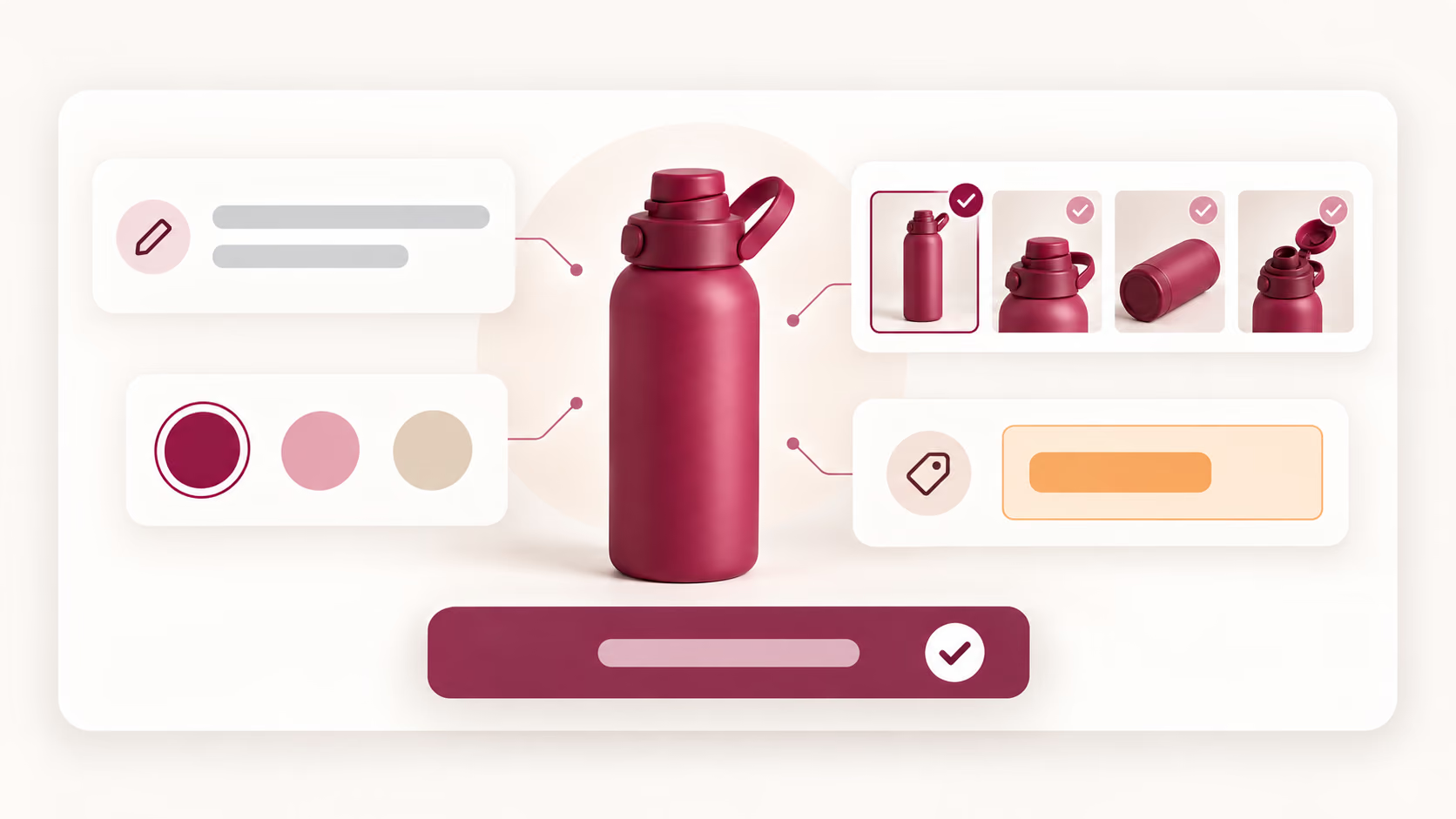
Open a product in Import List to work on its title, variants, description, images, and selling price. Rename confusing options, uncheck variants you do not want to offer, remove repetitive content, and select the images that belong in the final listing. For larger batches, bulk tools can update fields such as titles, prices, product types, and tags across selected products.
Capability 02

Organize products without changing store data

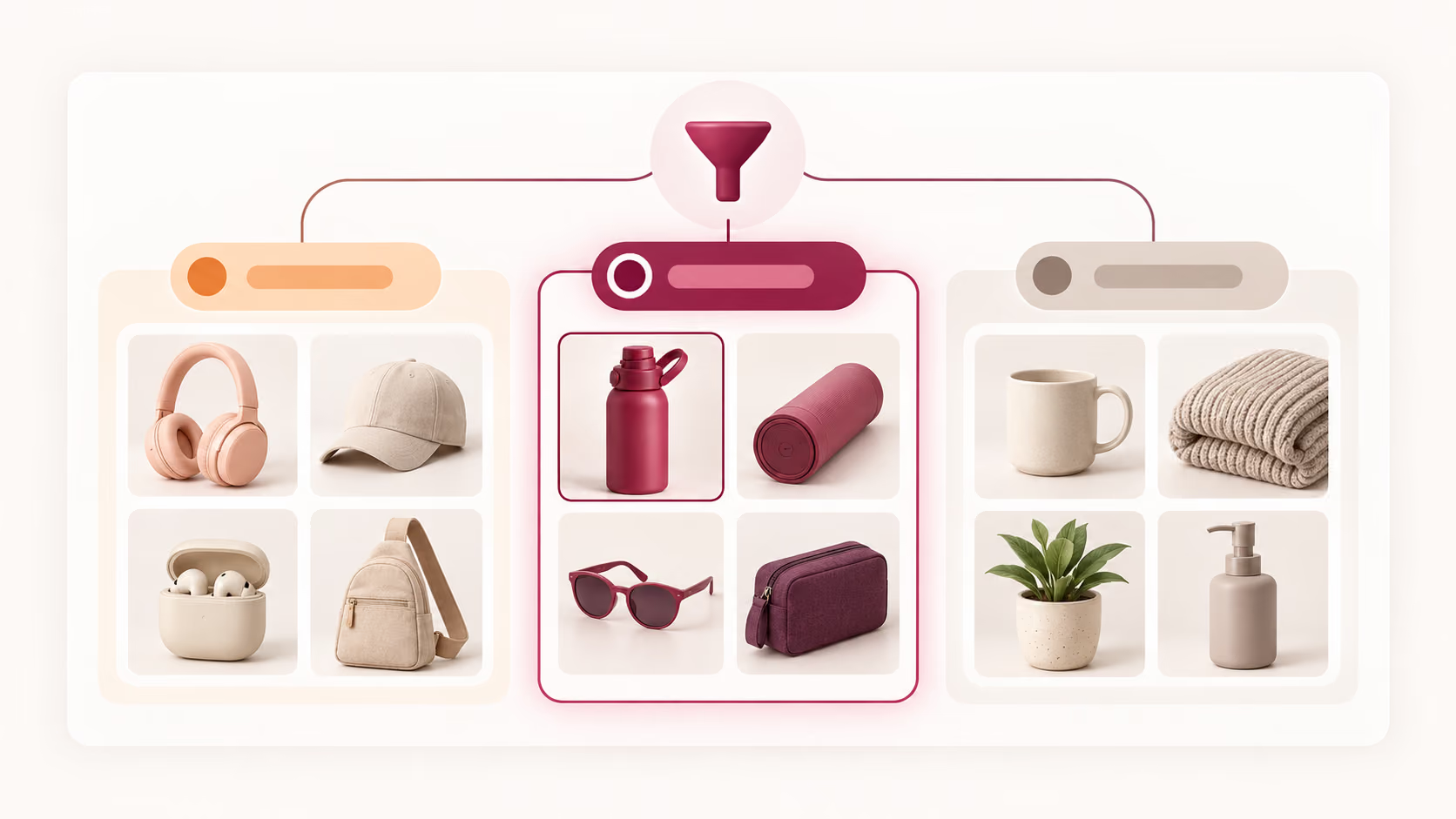
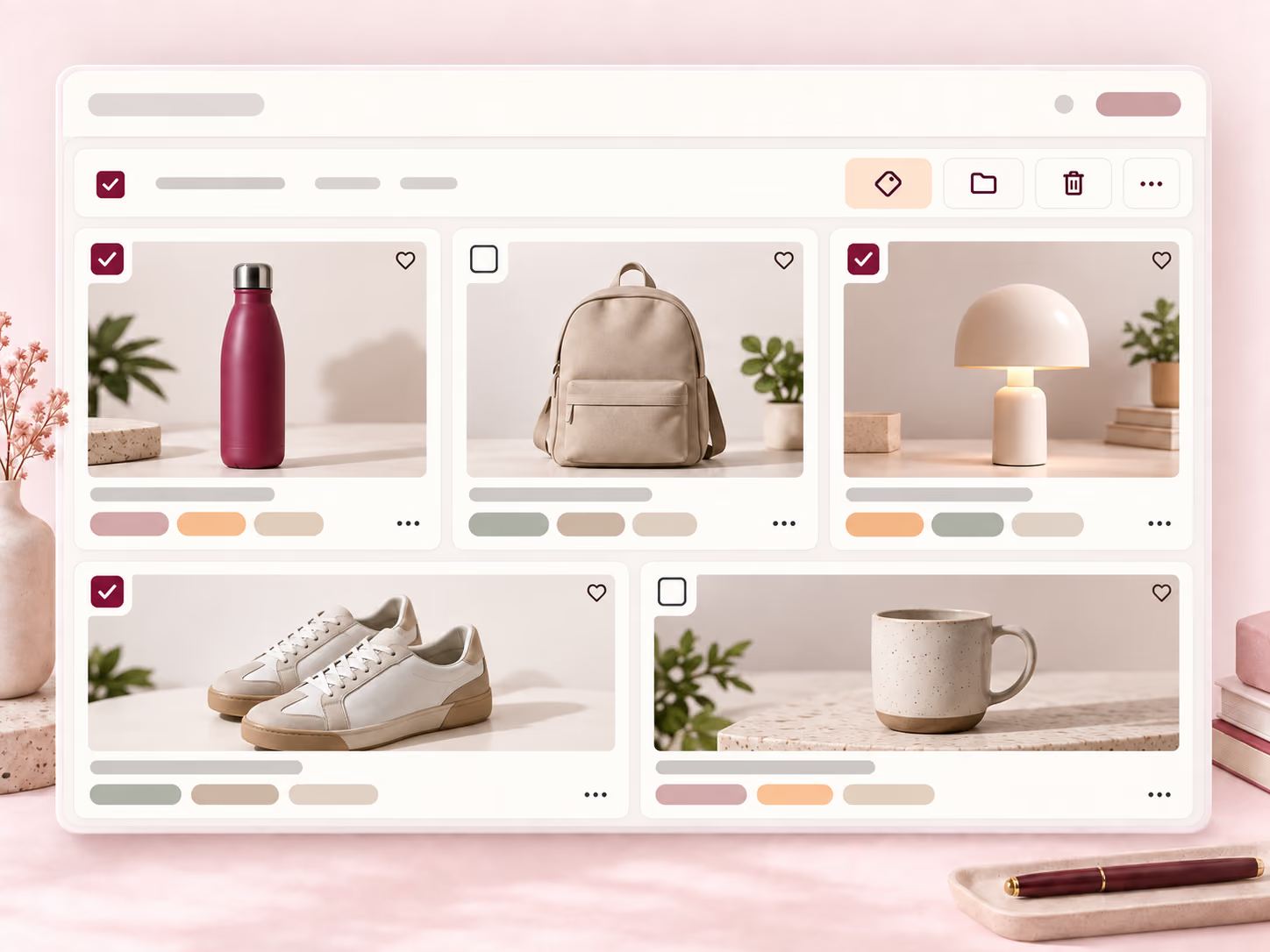
Create DSers tags to group products by niche, supplier, review priority, launch plan, or another system that fits your operation. Tags are internal to DSers and do not sync to your store. Combine them with filters for supplier marketplace, product cost, shipping origin, pushed store, push status, SKU count, or split status to bring the right products into view.

Capability 03

Control where a finished listing goes

When a product is ready, push one listing or select several products for a bulk action. Choose the connected store that should receive them. For Shopify, you can publish the product to the Online Store or send it as a draft for another review before it becomes customer-facing.

A full-width product catalog workspace using tags and bulk selection to organize listings

Multiple connected stores

Keep Multiple Store Catalogs in One Import List Workflow

If you run more than one store, Import List lets you work from one DSers dashboard instead of building a separate product-preparation process for every storefront. Use the store selector to review store-related settings and see how pricing rules affect variant sale prices for the selected store.

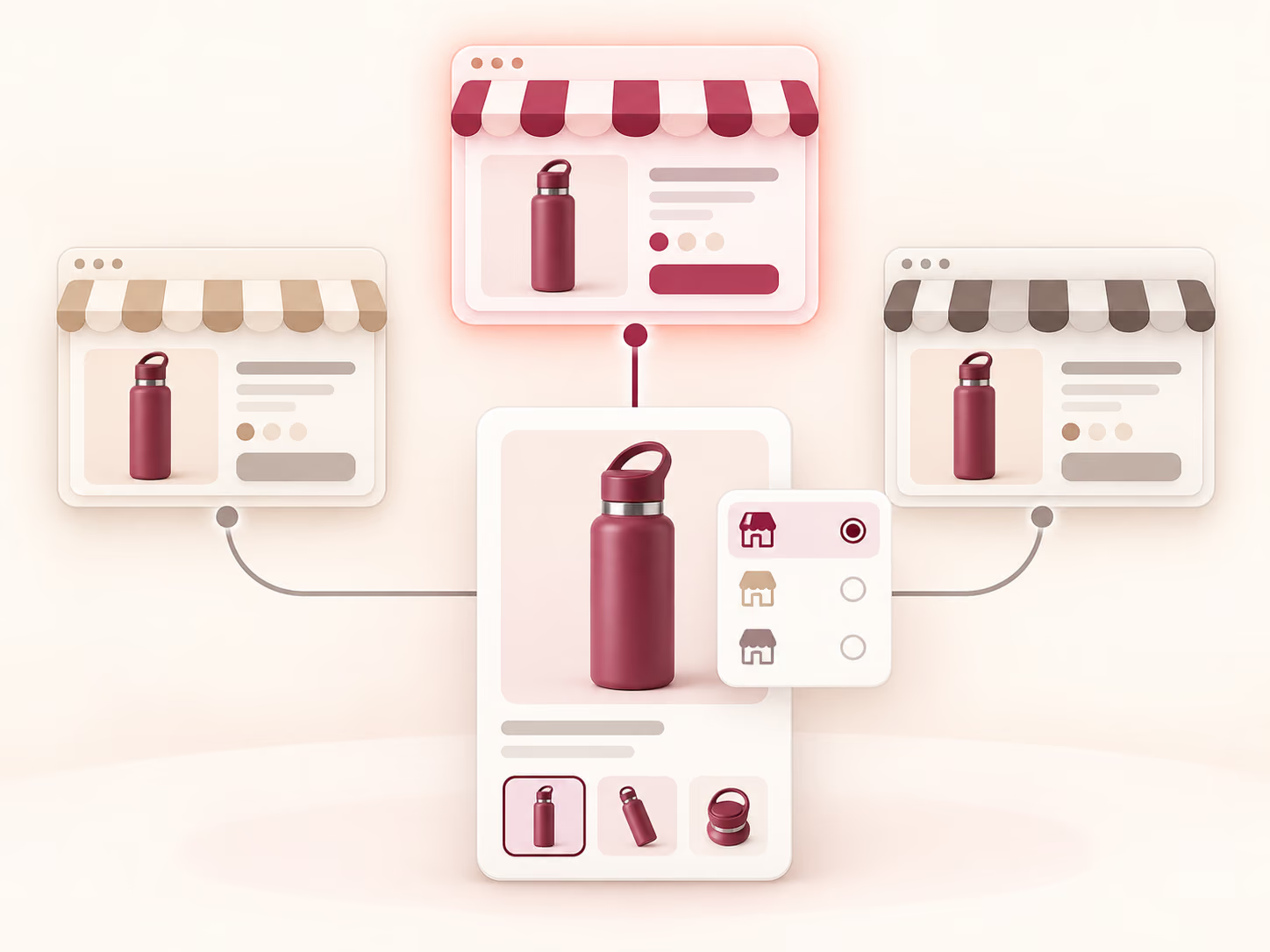
Review the scope before saving a change: origination settings and pricing-rule status can be store-specific, while some product detail or price edits apply globally to the product. That distinction helps teams prepare a shared product while still checking the settings intended for each Shopify or other connected store.

One prepared bottle listing with a selector connected to three online stores, one selected

Product listing workflow

Prepare and Publish a Product Listing in 5 Steps

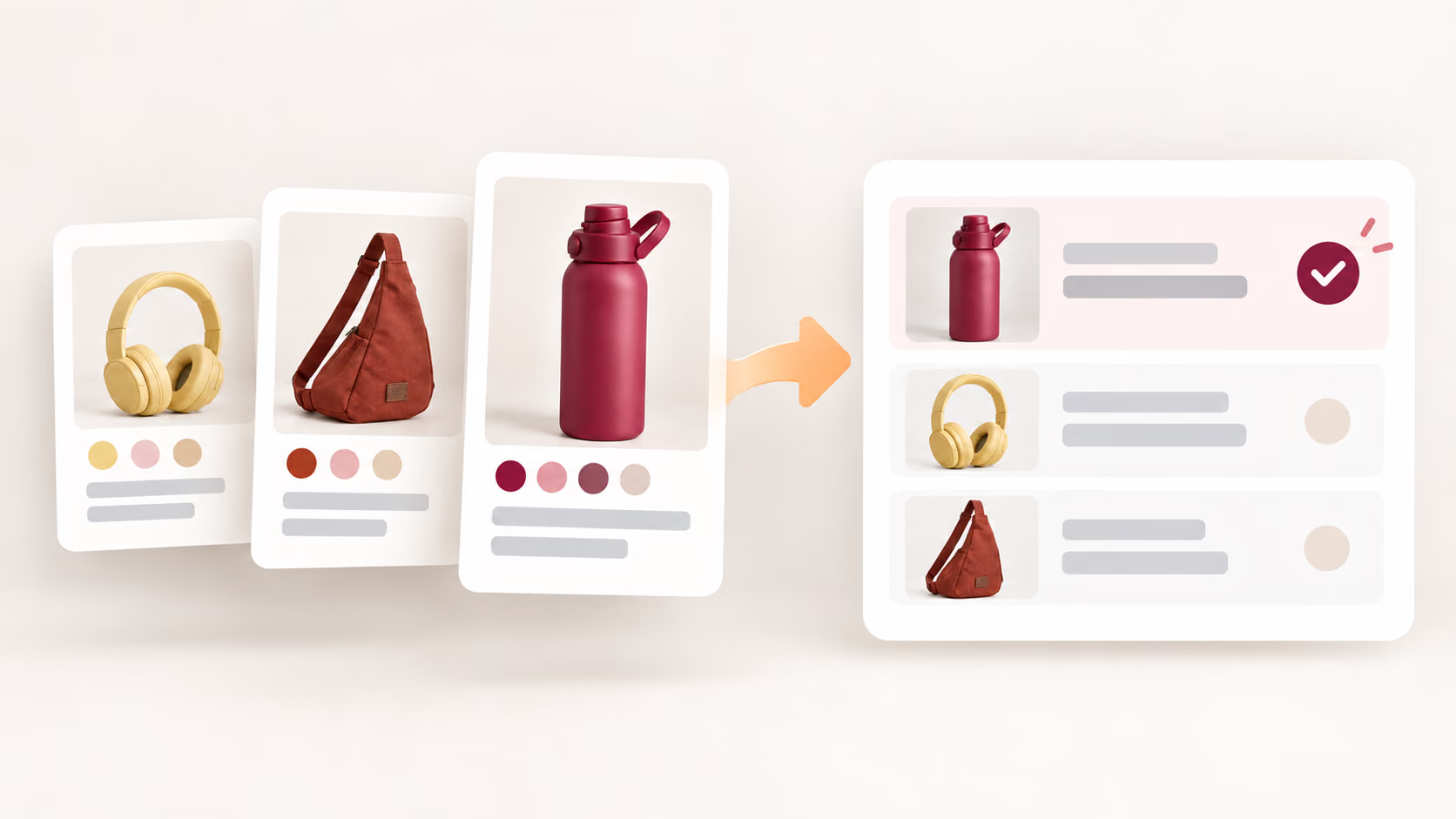
  1. Supplier product cards flowing into an Import List tray with the bottle listing confirmed
    1

    Add products to Import List

    Import a product through an available DSers sourcing or product-discovery workflow, then confirm it appears in the Import List.

  2. Bottle listing with editing controls for title, variants, selected images, and price
    2

    Edit the listing

    Review the title, variants, description, images, and selling price. Keep only the information and options you want customers to receive.

  3. Bottle listing prepared with a destination store category and store tags before pushing
    3

    Set the store category and tags

    Before pushing, assign the category and tags you want the destination store to receive. This prepares the store-side organization in advance, so the product arrives with the catalog structure you intend.

  4. Bottle listing connected to three stores with one destination and its settings selected
    4

    Check the destination store

    Select the connected store, review store-related settings and pricing behavior, and decide whether the product should be published or remain a draft.

  5. Bottle listing pushed to a storefront and verified for content, variants, price, and status
    5

    Publish the product and start selling

    Once the listing is ready, push it to your chosen store and review the product page one last time. Check that the title, images, variants, and price look right.Ready to sell? Publish the product so shoppers can see and buy it. If it still needs review, keep it as a draft and bring it live later.

Read the full product-listing guide

Build Better Product Listings Before They Go Live

Give every imported product a deliberate path from supplier data to a store-ready listing, while keeping Shopify and your other connected stores inside one manageable workflow.

Get Started

Product Listing FAQ

What can I edit in a product listing with DSers Import List?

You can edit the product title, variants, description, images, and selling price before pushing. Bulk actions are also available for selected fields and product groups.

Can I publish product listings from DSers to Shopify?

Yes. Choose a connected Shopify store when pushing from Import List, then publish to the Online Store or send the product as a draft for review.

Can I manage product listings for multiple stores?

Yes. Use the Import List store selector across connected stores. Check each setting's scope because some changes are store-specific while other product edits apply globally.

Do DSers tags appear in my Shopify store?

No. DSers tags are internal labels used to organize and filter products inside Import List. They are not synchronized to Shopify or another connected store.

Will an Import List edit update a product that is already live?

No. Import List changes do not automatically update an already published product. Make post-publish changes through the relevant sales channel.