Set AliExpress Shipping Rules Once—Let DSers Apply Them to Eligible Orders

AliExpress shipping methods can vary by product, supplier, and destination. With DSers Shipping Settings, you can rank preferred methods or define cost, delivery, and tracking conditions. DSers then checks the options each supplier currently supports and applies a matching method to eligible orders—so you do not have to make the same choice again and again.

Get Started
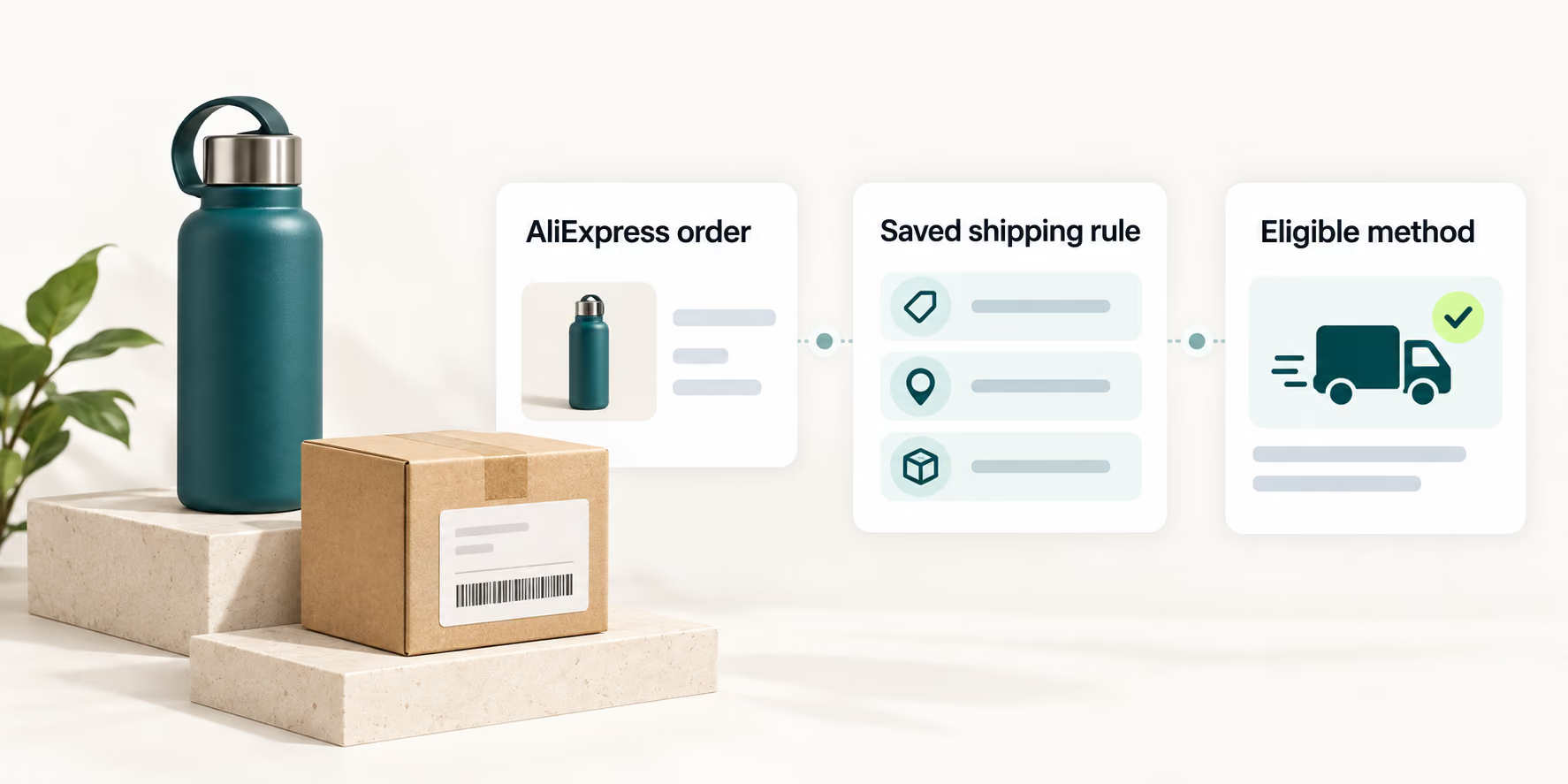
An AliExpress order passes through a saved shipping rule to receive an eligible supplier-supported method

Reusable order rules

Turn Shipping Preferences Into Rules DSers Can Reuse

DSers Shipping Settings automates method selection for AliExpress-sourced products. Create a Global or country-specific rule for regular orders, or assign a preferred method to a specific mapped product and destination.

A saved rule does not guarantee that the same shipping method will always be available. Availability still depends on the supplier, product, and destination. DSers compares the methods currently offered with your saved priorities or conditions and selects a match.

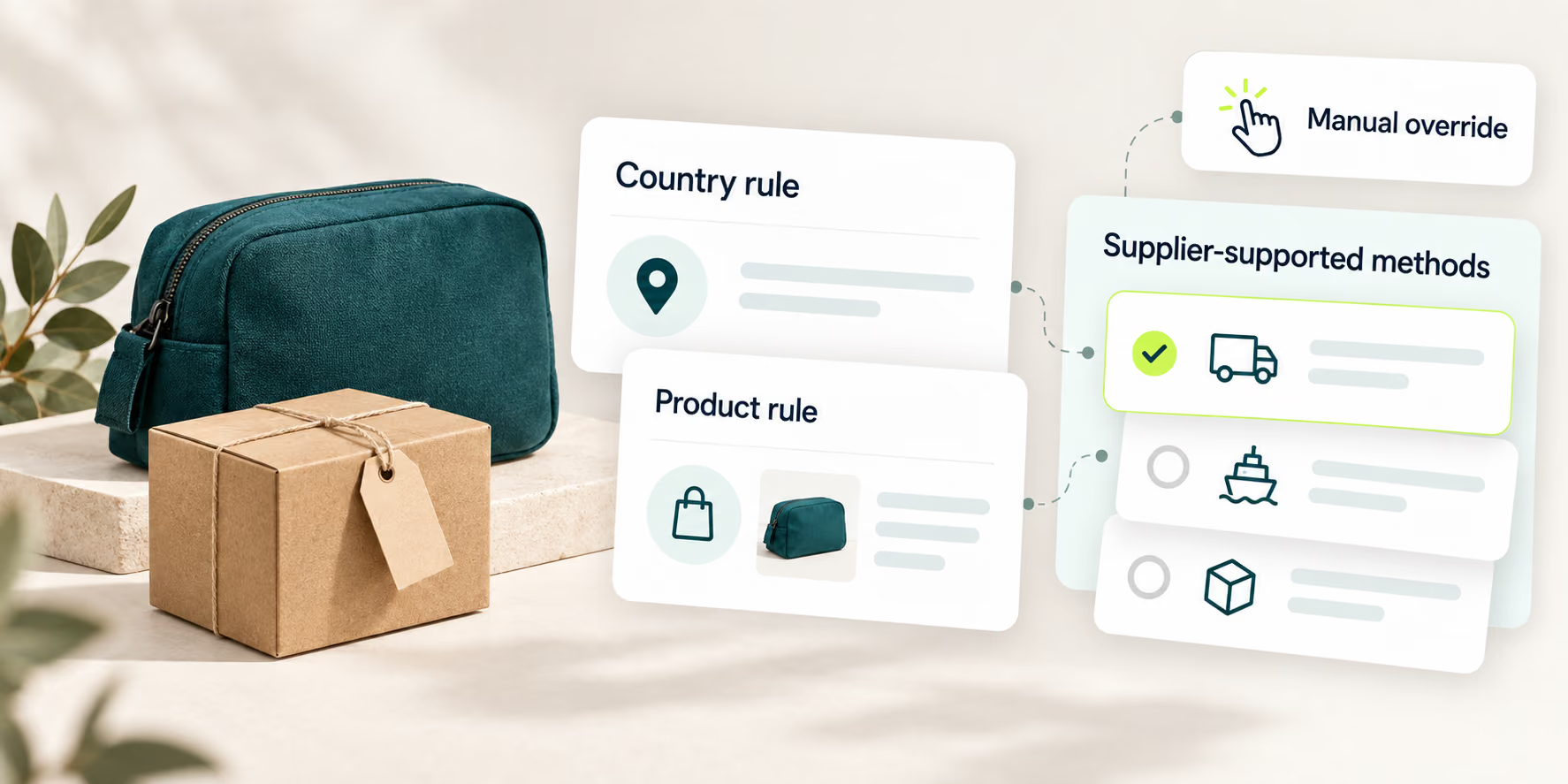
Country and product rules connect to supplier-supported shipping methods, with a separate manual override

One-off choice vs. reusable rule

Stop Making the Same Shipping Choice for Every Order

Manual selection sends you back to the supplier’s method list for every order to compare cost, delivery time, and tracking. Saved Shipping Settings keep your preferences ready and check them against the methods available for the next eligible order.

Manual selection

Decide from scratch

  • Review current optionsSee which methods the supplier supports for that product and destination.
  • Compare the trade-offsCheck shipping cost, estimated delivery time, and tracking again.
  • Use the right balanceChoose the mix of cost and service that fits that destination.
  • Select the methodMake the final choice manually before placing the order.

Saved DSers settings

Reuse your preferences

  • Save the preferenceRank methods by name or define cost, delivery, and tracking conditions.
  • Check current availabilityDSers compares the rule only with methods the supplier currently supports.
  • Select a matching methodDSers applies an available method that meets the saved rule.
  • Handle exceptions manuallyReview or replace the method when an order needs different treatment.
Automation does not remove your control.DSers handles the repeatable comparison, while you keep the final say when supplier availability changes, an order is urgent, or another exception requires a different method.
Two selection modes

Rank Specific Methods—or Let Conditions Find a Match

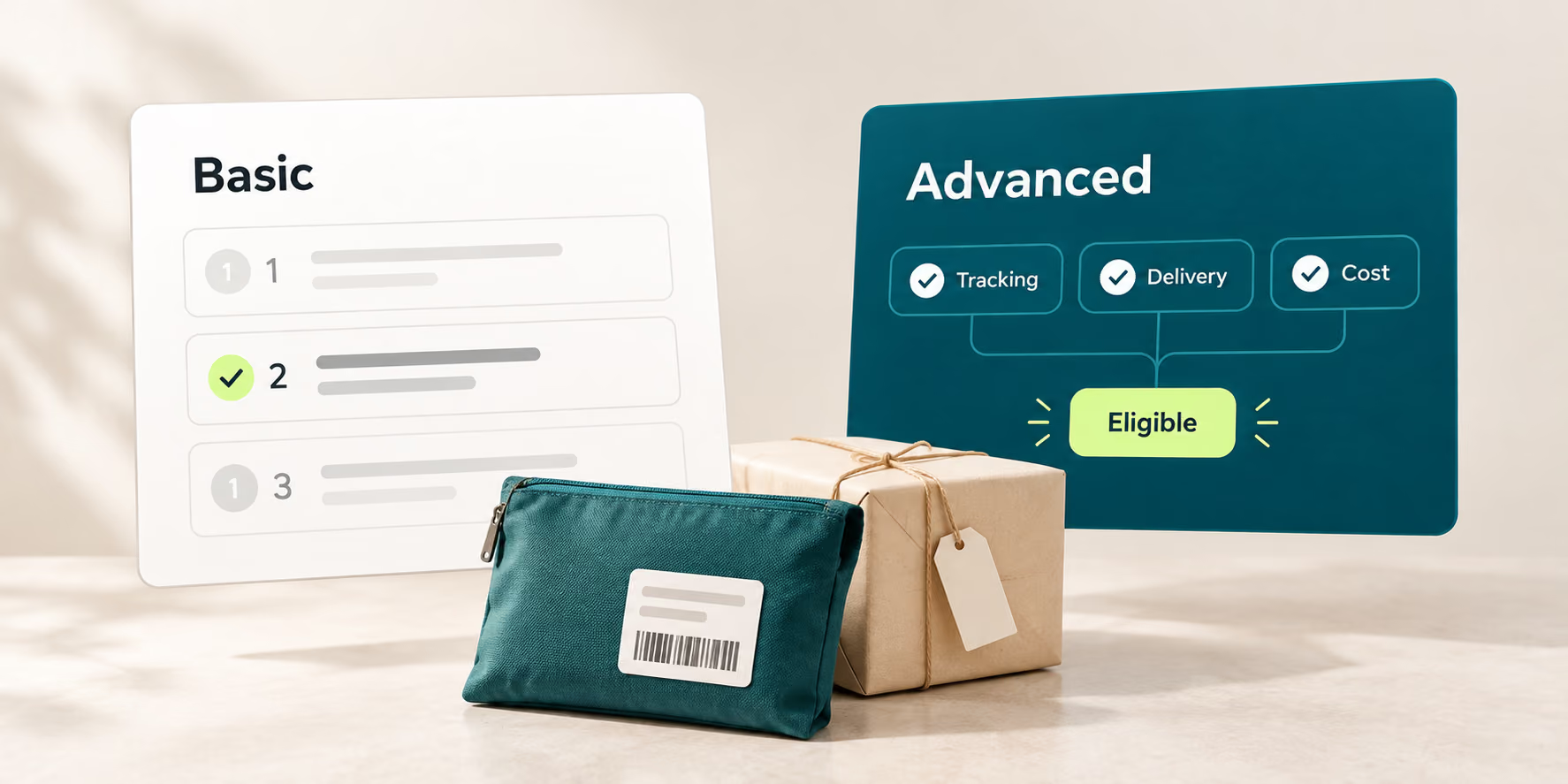
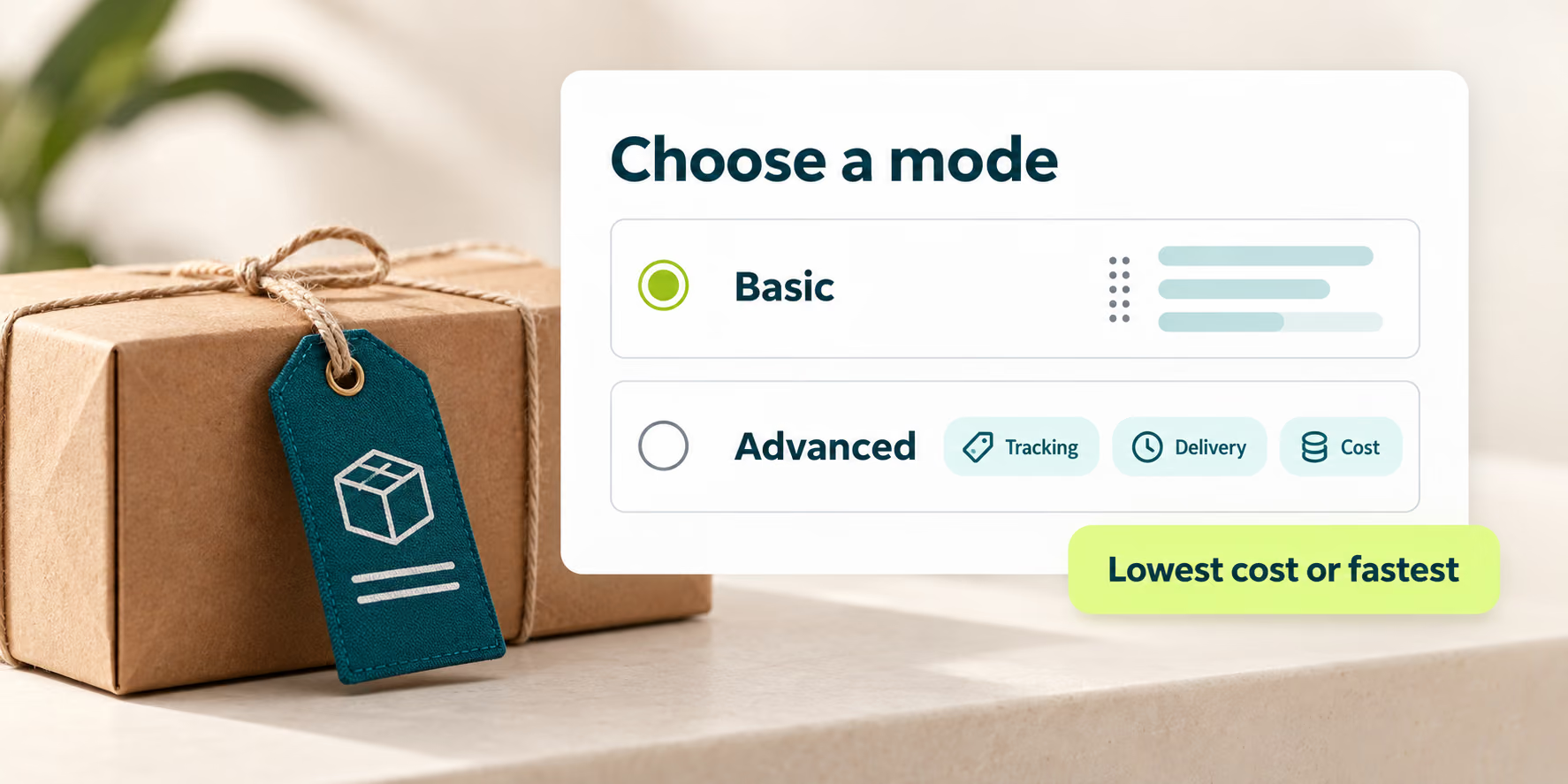
Basic mode ranks named methods; Advanced mode filters available methods by cost, delivery time, and tracking.

Basic mode selects the first available priority method while Advanced mode applies tracking, delivery, and cost conditions

Basic Shipping Method

Choose Global or a specific country, add methods your suppliers support, and rank them in the order you prefer. DSers checks the list from top to bottom and selects the first available match. A country-specific rule overrides Global. If multiple rules exist for the same country, DSers checks the top rule first.

Advanced Shipping Method

Choose a destination and set requirements for tracking, maximum delivery period, and maximum shipping cost. When multiple methods meet those conditions, DSers can select the lowest-cost or fastest option.

Before you save a rule

Check Availability, Compare History, and Price With Shipping Costs

Review what the supplier currently offers, use recent account data as a reference, and decide whether shipping cost should feed into your product pricing.

01

See what the supplier supports

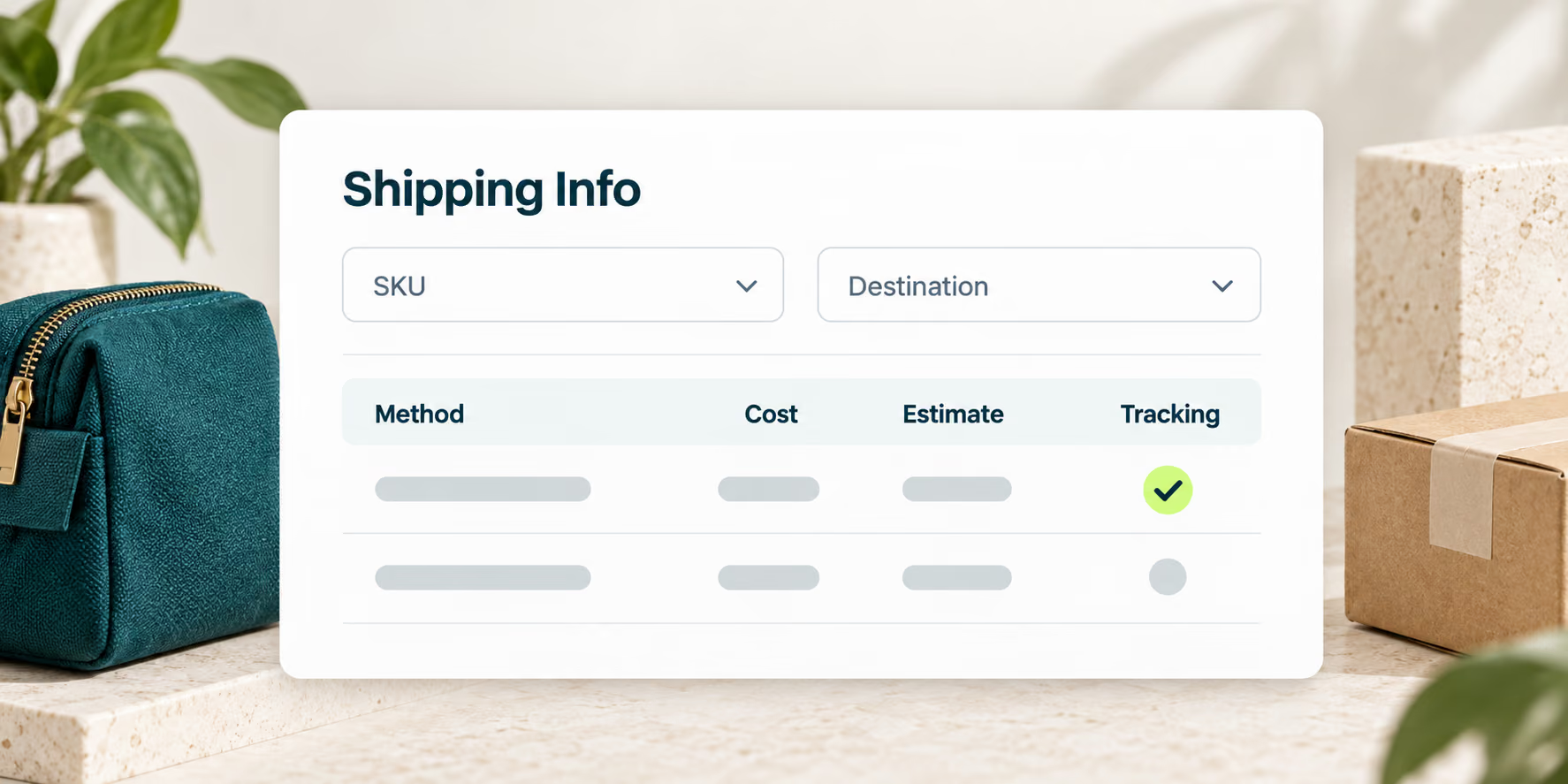
In Import List, open the product card’s Shipping Info. Use the SKU switch and country search to review available methods, shipping costs, and estimated delivery times.

02

Use recent history as a reference

For methods you have used, DSers may show average time and cost from your account’s previous three months of orders. Methods you have not used display a dash. These figures are reference data, not delivery guarantees.

03

Include shipping cost in pricing

When Send product and shipping cost to Store is enabled, DSers can send the combined cost to your store. A Basic Pricing Rule based on Total cost can use that amount before calculating the selling price.

Specific beats general

Give Specific Mapped Products Their Own Shipping Rule

When one mapped product needs a different method from the country default, create a product-based rule for that product, destination, and supplier-supported method. Set it up in Shipping Settings, or open Favorite Suppliers under Product Mapping and select Shipping Info.

  1. 1

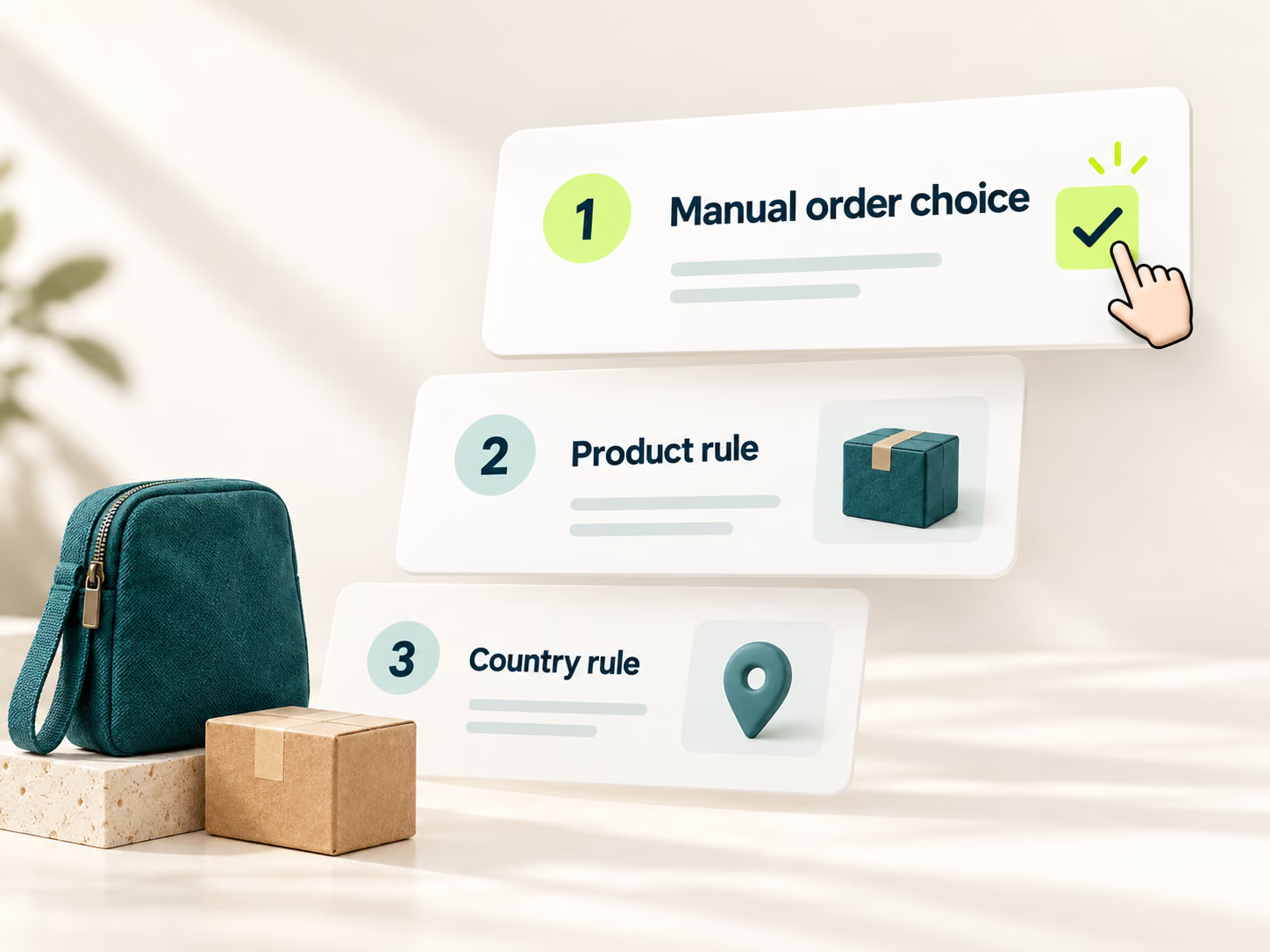
    A method selected manually on the order card takes highest priority.

  2. 2

    A product-based rule overrides the broader country setting.

  3. 3

    The country-based rule remains the general default.

Shipping selection priority from manual order choice to product rule to country rule

Set the rules once

Set Up AliExpress Shipping Rules in 4 Steps

Start with methods the supplier currently supports, then save your rule and confirm the result on an eligible order.

Shipping Info fields for selecting a SKU and destination and comparing method, cost, estimate, and tracking
1Review

Check available methods

In Import List, open the product card’s Shipping Info, choose the SKU and destination, then compare supported methods, costs, and estimated delivery times.

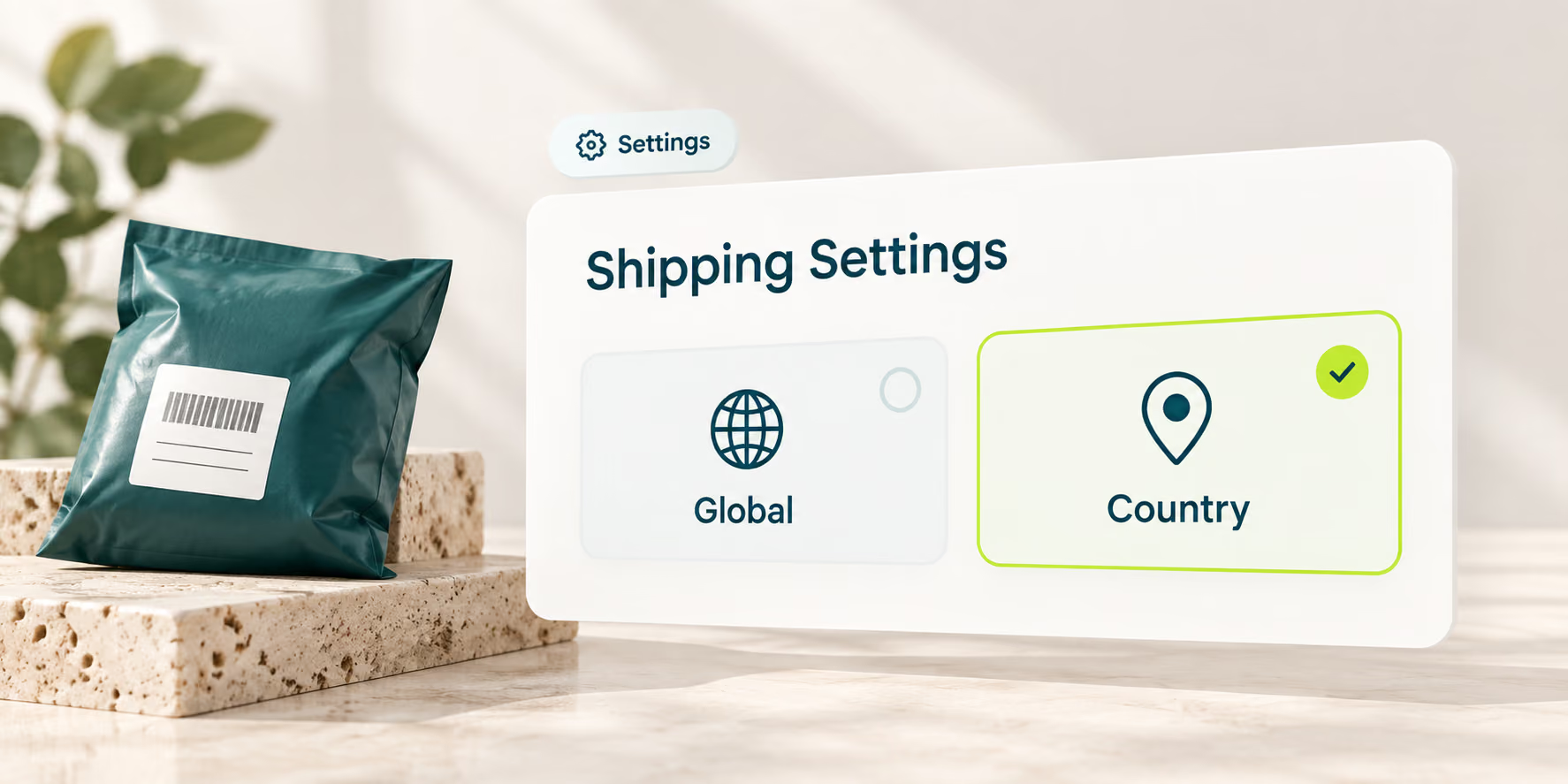
Shipping Settings with Country selected beside the Global scope
2Open settings

Choose Global or a country

Go to Settings → Shipping Settings, then open Add Global shipping method based on Condition. Choose Global or a specific country.

Basic mode selected above Advanced tracking, delivery, and cost conditions
3Configure

Choose Basic or Advanced

Use Basic to rank named methods. Use Advanced to set tracking, delivery-period, and cost conditions, then choose lowest cost or fastest delivery.

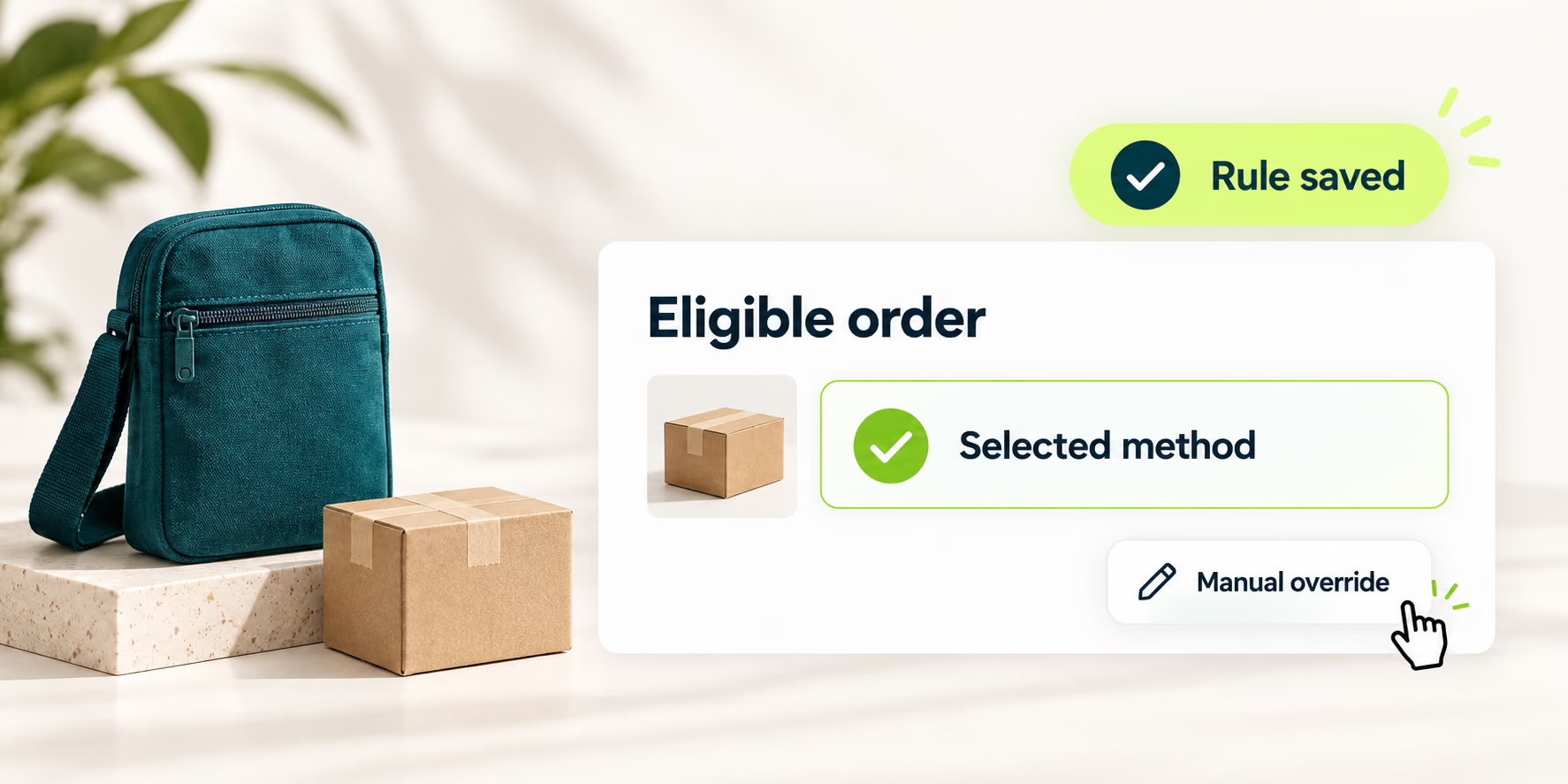
A saved rule applied to an eligible order with the selected method and manual override
4Verify

Save and review

Save the rule and check the method selected on an eligible order. Add a product-based rule or override the method manually when an exception needs different treatment.

Read the full Shipping Settings guide

Build Shipping Rules Into Your Fulfillment Workflow

Set the cost, delivery, and tracking priorities your store needs. DSers can then apply a matching supplier-supported method to each eligible order while you keep manual control for exceptions.

Get Started

AliExpress Shipping Settings FAQ

How does DSers choose an AliExpress shipping method?

Basic mode checks your ranked list and selects the first method the supplier supports. Advanced mode filters current methods by your tracking, delivery-period, and cost conditions, then selects the lowest-cost or fastest qualifying option.

Can I use different shipping rules for different countries?

Yes. A country-specific rule overrides Global for that destination. If you have more than one rule for the same country, DSers checks the top rule first.

Can I set one shipping method for a specific product?

Yes—if the product is mapped in DSers. Choose the product and destination, then select a method the supplier currently offers.

What happens if my preferred method is unavailable?

Basic mode moves to the next saved method. Advanced mode considers only methods that meet your conditions. If none match, review current supplier options and choose manually; saved rules cannot make an unavailable method available.

Can I override an automatically selected shipping method?

Yes. A method selected manually on the order card takes priority over product- and country-based rules.