Separate storefronts
Each store keeps its own customer-facing business.
Branding, customer experience, platform subscriptions, marketing, and customer service remain separate.
Bring each storefront into one DSers account. Products, orders, pricing, inventory, and tracking stay organized by store as you work.
Get Started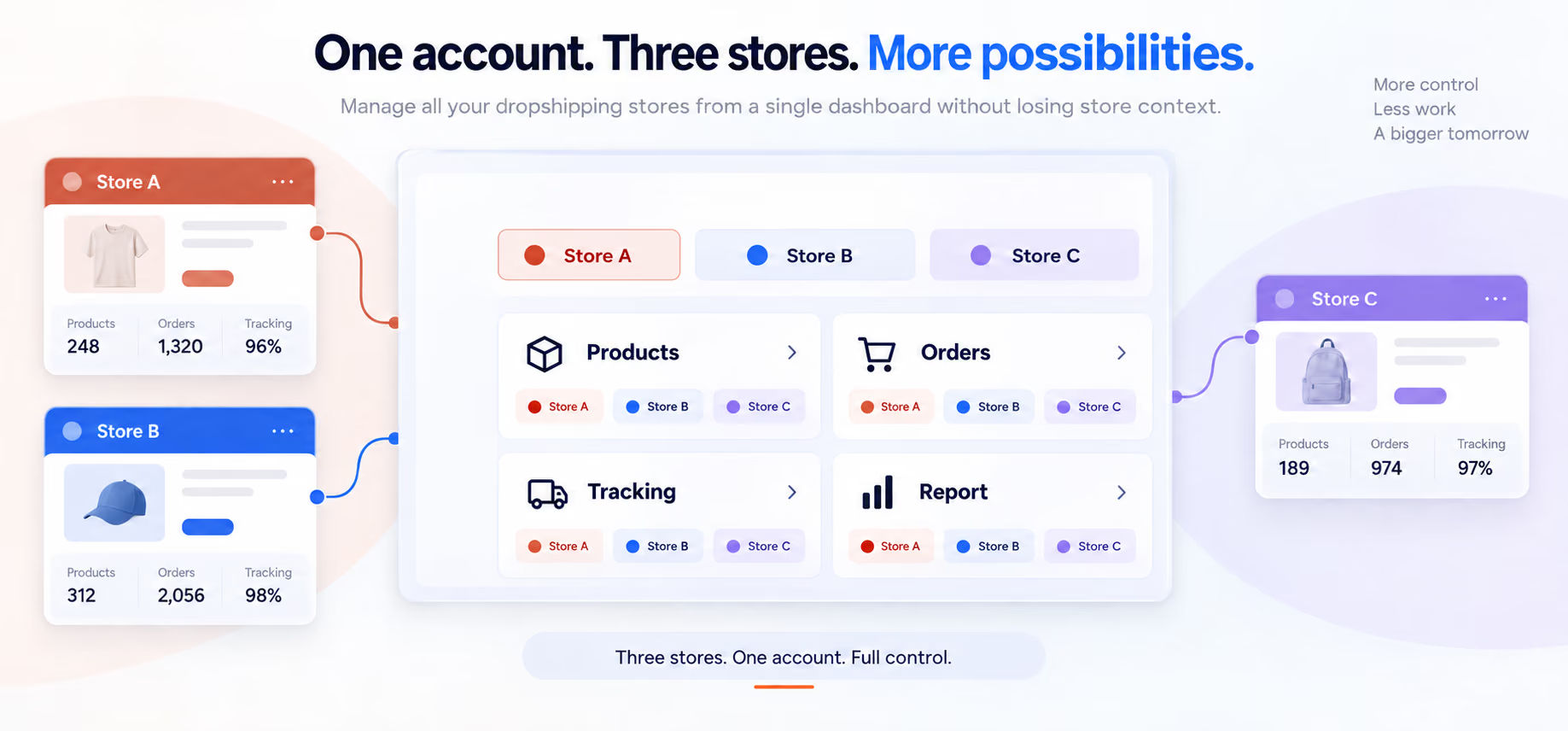
Growth adds operational surfaces faster than it adds clarity. A shared workspace reduces tab-hopping and repeated setup, while store labels keep ownership visible before you edit a product or act on an order.
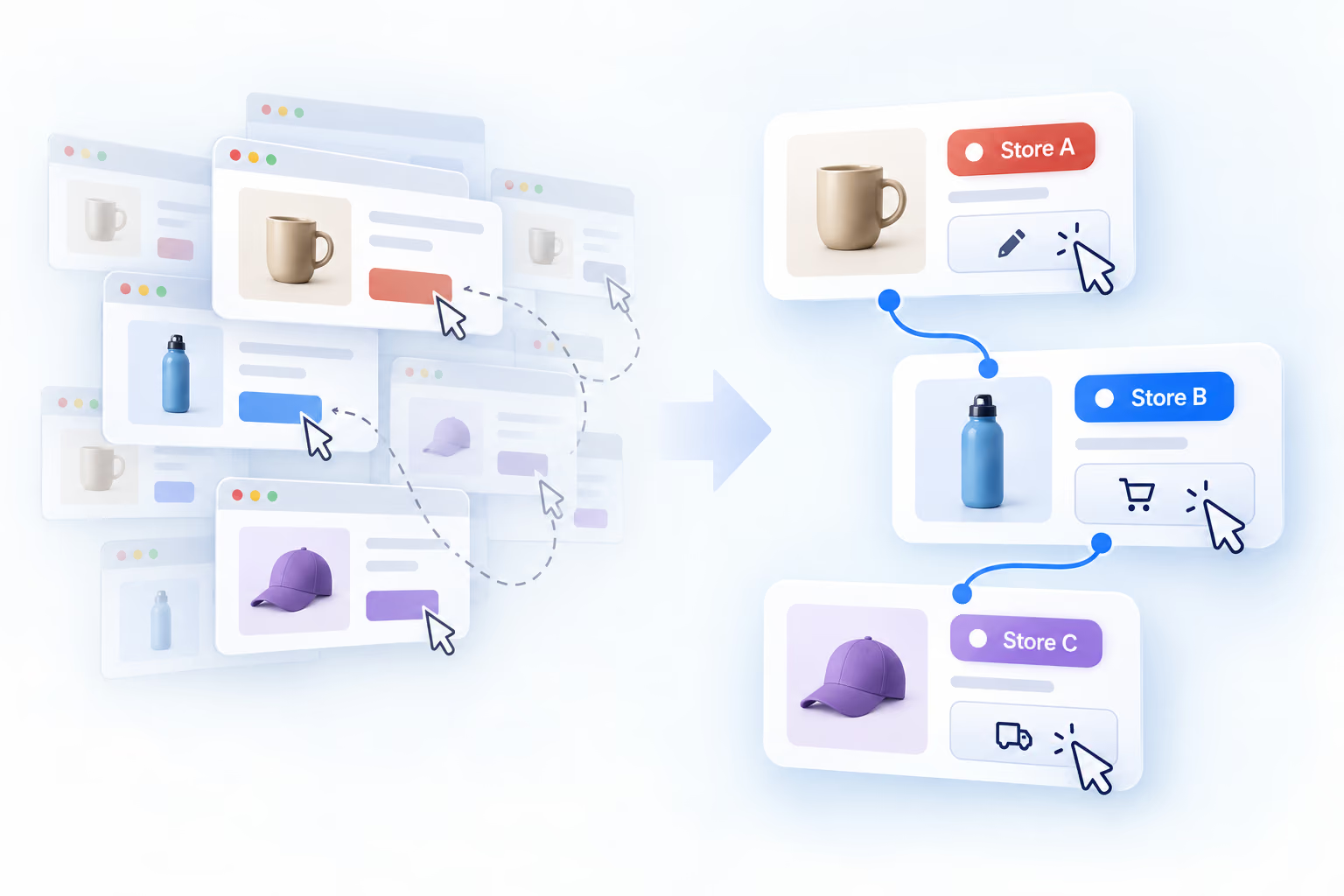
Multi-store management is the back-office layer that sits across otherwise independent storefronts. Customers still encounter separate brands; operators get a consistent place to handle the supported work behind them.
Separate storefronts
Branding, customer experience, platform subscriptions, marketing, and customer service remain separate.
Coordinated operations
Store identity remains visible as you move between supported product, order, tracking, and reporting pages.
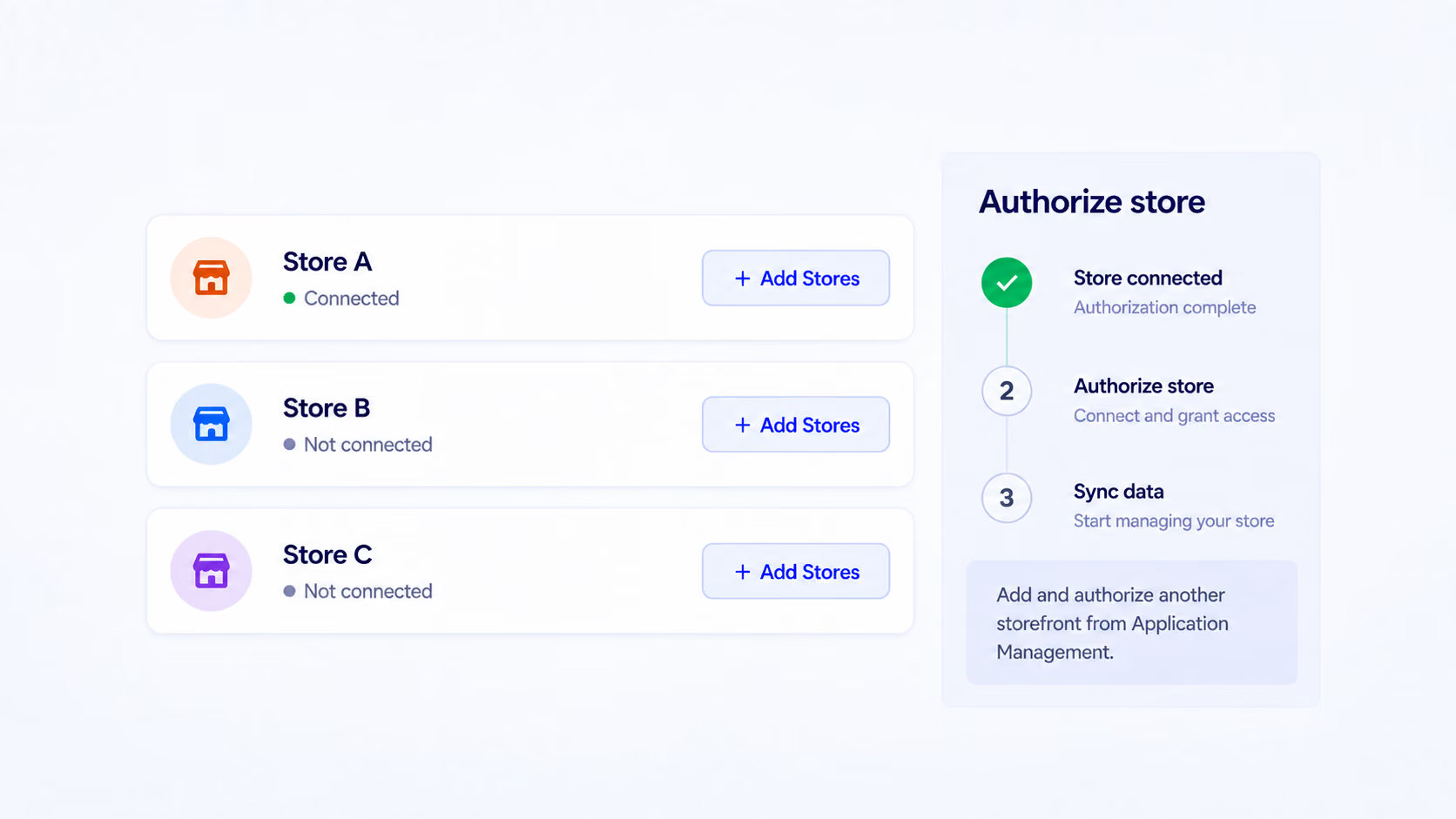
Authorize stores first. Then prepare catalog items, handle incoming orders, and review each storefront from the page built for that task.
Step 1
Open Application Management, select the relevant sales channel, and complete that platform’s authorization process. Store and platform limits depend on your DSers plan.
Make sure you are signed in to the storefront you intend to connect.
Step 2
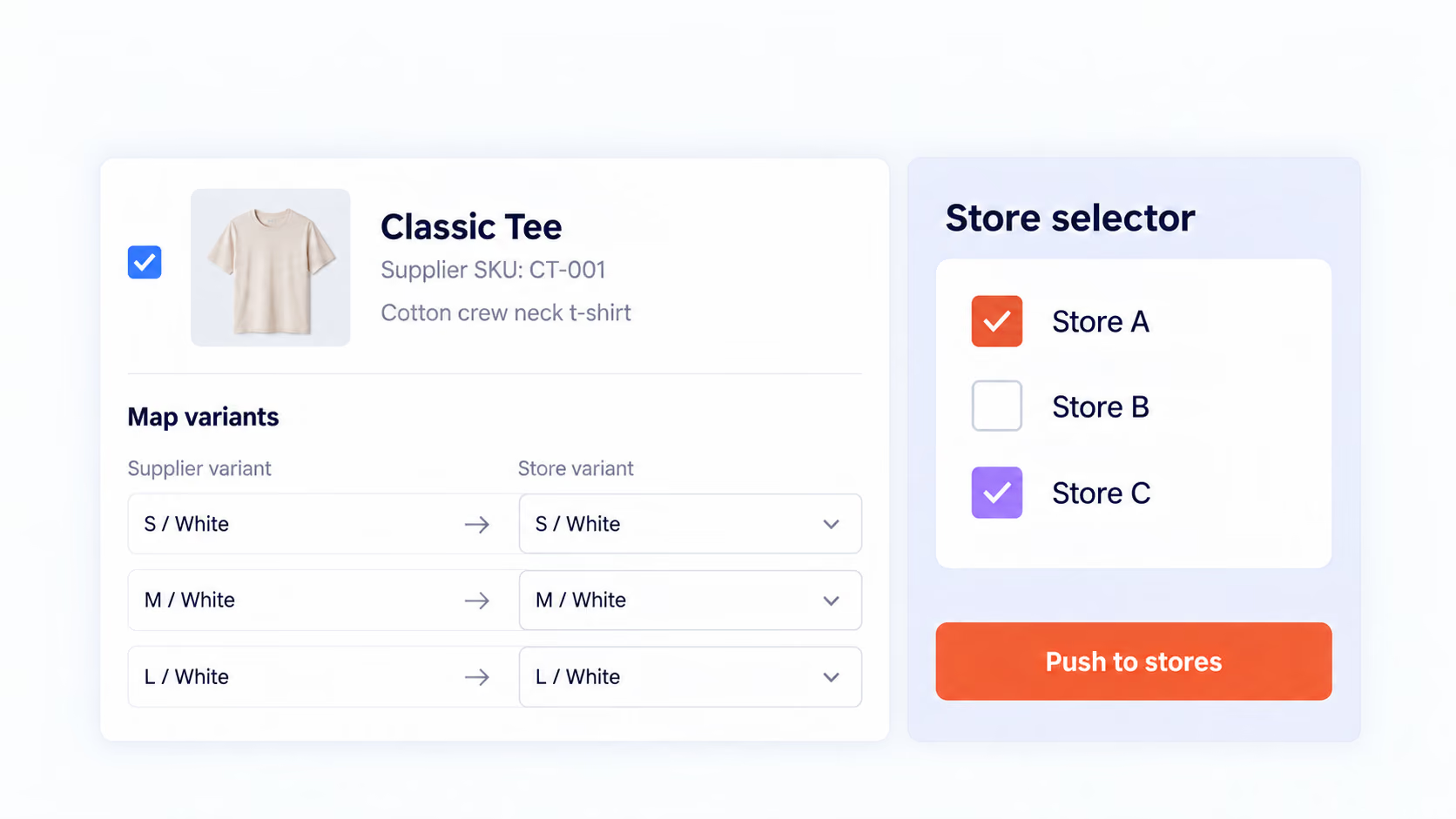
Import and map a product in DSers. At push time, open the destination selector and choose the storefronts that should receive it.
A single prepared import can support different catalogs.
Step 3
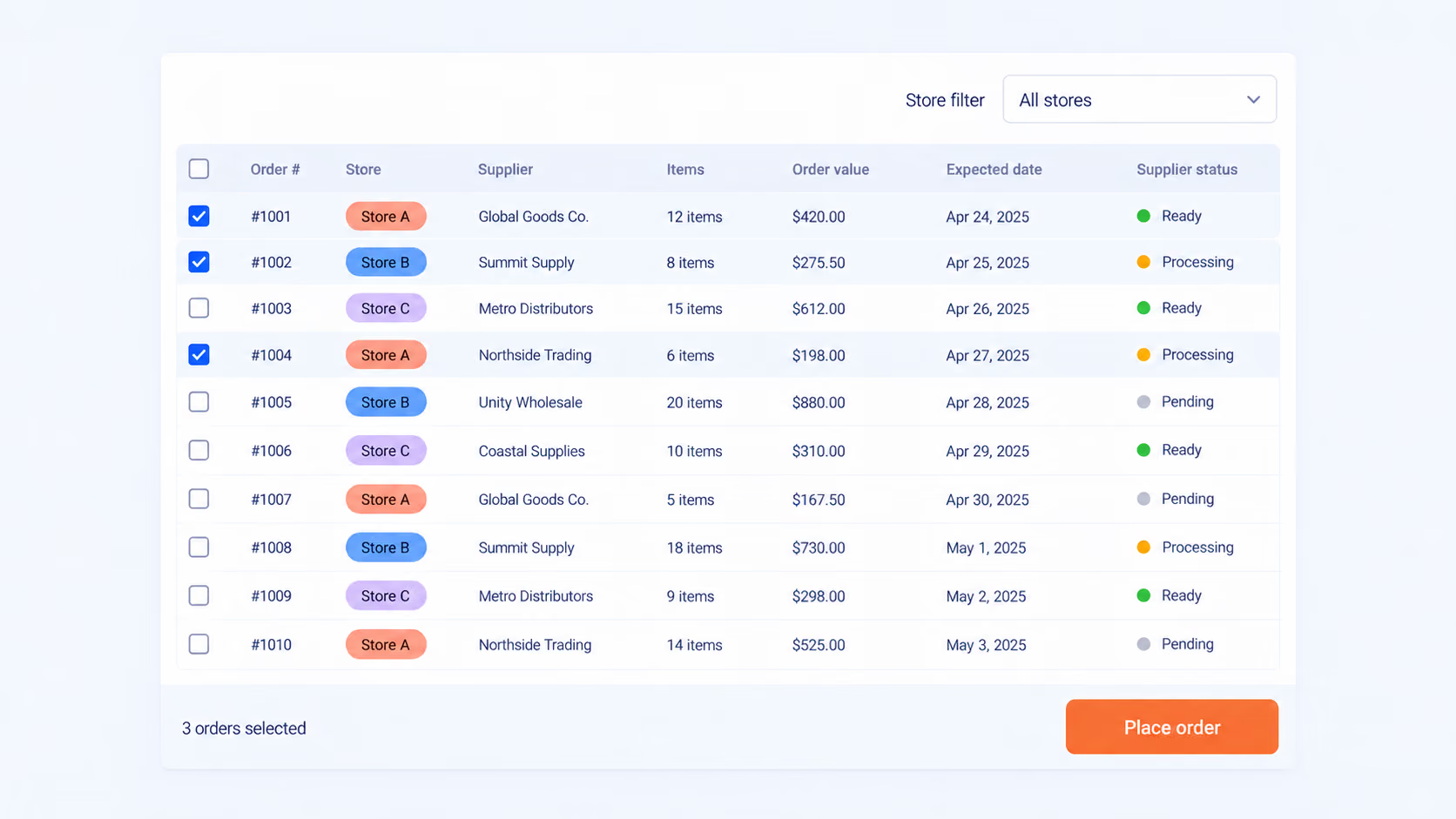
Open the synced order queue, use store filters to narrow the list when necessary, then continue with supplier order placement.
Filter before selecting a batch when you need to isolate one storefront.
Step 4
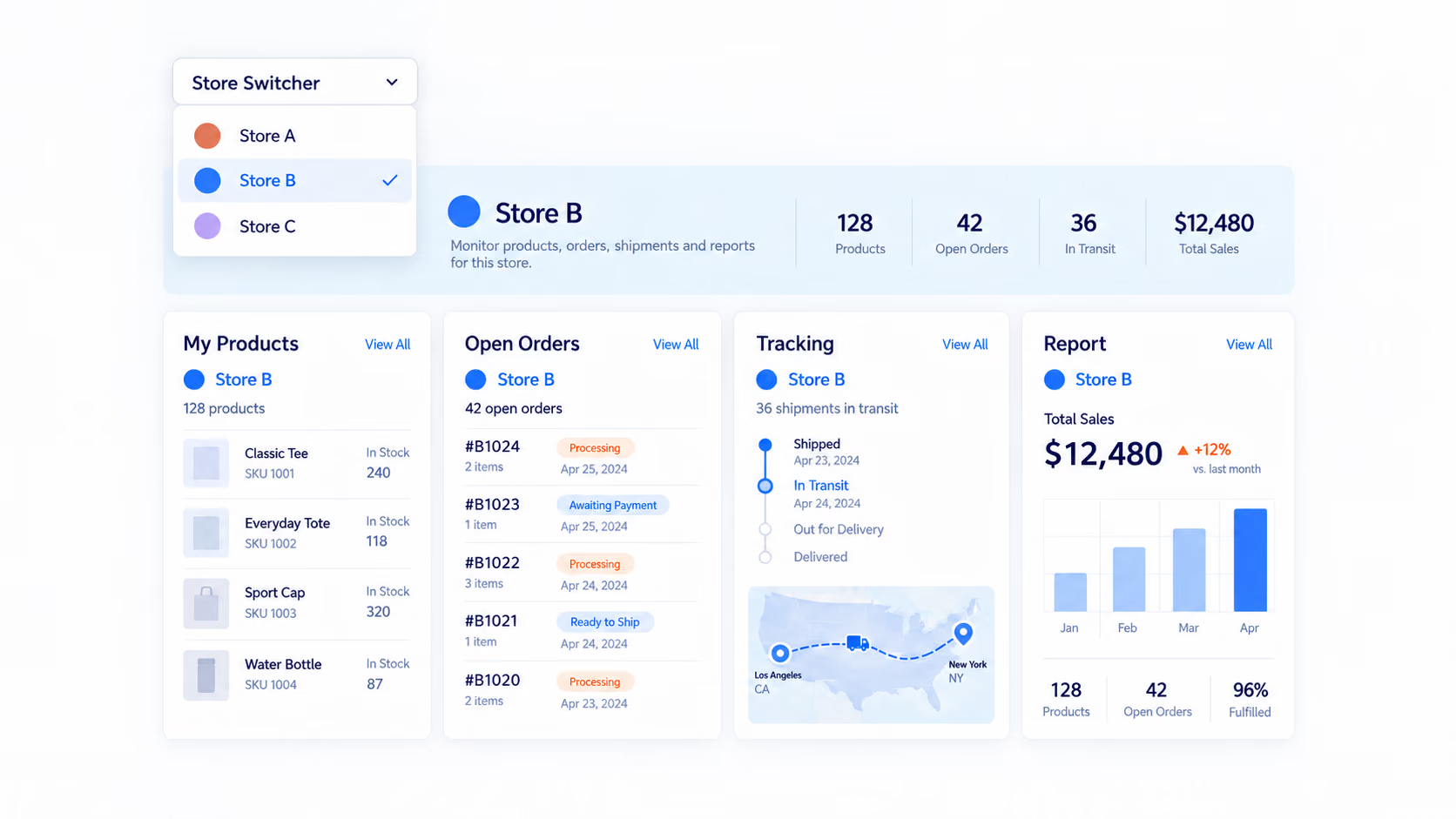
Choose a storefront from the Store Switcher, then inspect the relevant product, order, shipment, or reporting view.
Home and Find Suppliers remain account-wide; Import List assigns destinations at push time.
The value appears in the handoffs between tasks: less duplicate setup, fewer unnecessary login changes, and clearer ownership before an update is saved.
Map an item once, then decide which connected catalogs receive it when you push.
See the combined workload, or narrow the list to a single storefront before processing orders.
Store labels and selectors help distinguish store-specific pricing or tracking work from account-wide behavior.
Use DSers to keep the supported sourcing and fulfillment work behind your store portfolio within reach as the business grows.
You can connect multiple eligible stores to one DSers account and manage supported product, order, pricing, tracking, and reporting tasks with store context. Store and platform limits depend on your subscription plan.
The Store Switcher is supported on My Products, Open Orders, Tracking, and Report. Home and Find Suppliers are account-wide. Import List does not use the regular Store Switcher; instead, you select target stores when pushing products.
Yes. Products can be prepared in the Import List and pushed to the connected store or stores you choose, supporting different catalogs without a separate initial import for every store.
Pricing Rule status is store-specific. However, not every product edit is isolated by store: origination settings can apply to the selected store, while certain edits in the Variants tab apply globally. Check the interface scope before saving changes.
Current DSers help material lists limits of 3 stores on Basic, 10 on Advanced, 25 on Pro, and 50 on Enterprise, with separate limits for the number of sales-channel platforms. Check the live Pricing page for current plan details.
Current DSers help guidance states that Wix permits only one Wix store per DSers account, regardless of the DSers plan.
No. Multiple Stores Management organizes supported sourcing and fulfillment operations after your stores are connected. Store creation, branding, advertising, platform fees, and customer service remain separate responsibilities.